What tool can create multiple product views from one photo?
CREATR’s 9× Product Views tool can create a set of product-image variations from one source. Start with a clear, approved image and review each view against the actual item. A generated angle is a proposed representation, not evidence of product construction that was hidden in the original photo.
Account required. Review the trial allowance and credit costs before generating.
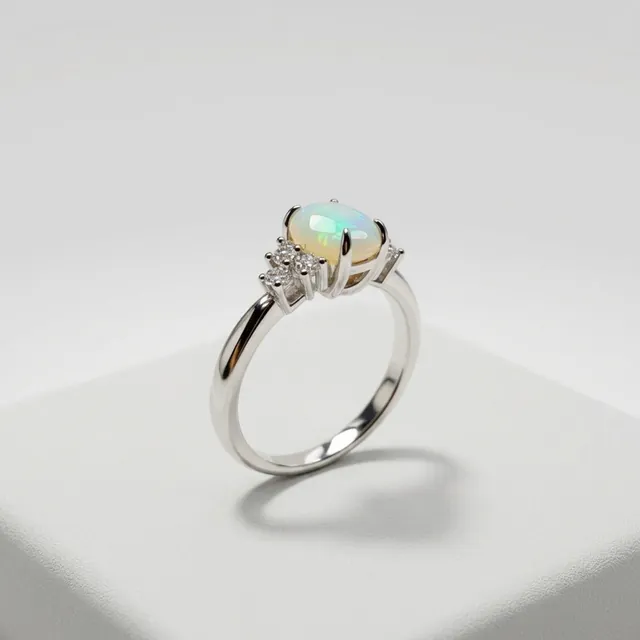
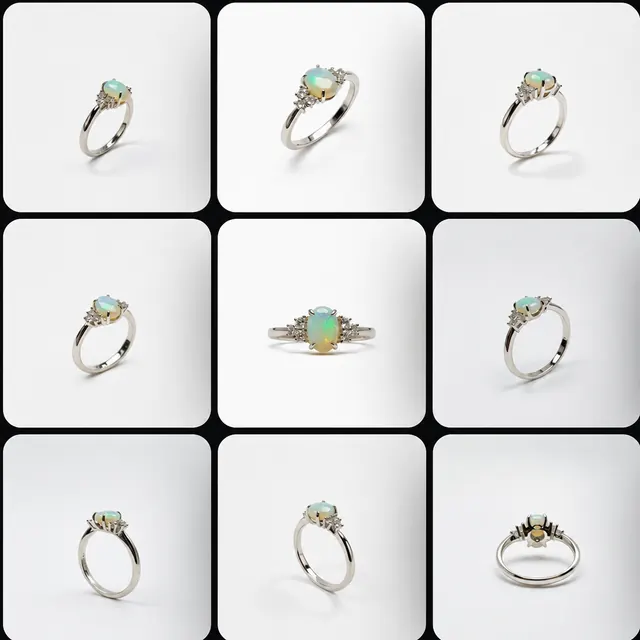
An existing CREATR ring showcase and nine-view example. Inspect the setting, stone, band, proportions, and unseen surfaces. The grid illustrates output variety; it is not proof that every generated angle is physically accurate.
See the original CREATR showcaseUse AI views to extend a clear source, and use real references to verify unseen details.
What should you look for in a product-view tool?
- A dependable starting image
- Choose the correct variant, with the full product and important details visible. A clean silhouette and readable packaging make review easier. More detail in the source gives you more to check in each output; it does not reveal a hidden back or underside.
- Consistency within the set
- Compare the same feature across every view. Check the number of parts, stone setting, handles, closures, printed marks, and material finish. Reject a set that changes the product between frames, even if each individual image looks attractive.
- Views that answer buying questions
- Decide what the customer needs to understand: overall shape, scale, a useful detail, or a product in context. Do not fill a page with near-identical views when one controlled detail photograph would answer the question better.
- Reviewable, usable exports
- Inspect individual images at the size you will publish. Check the crop and resolution, and keep approved files separate from exploratory versions. Verify the current tool options and credit cost in the interface before generating.
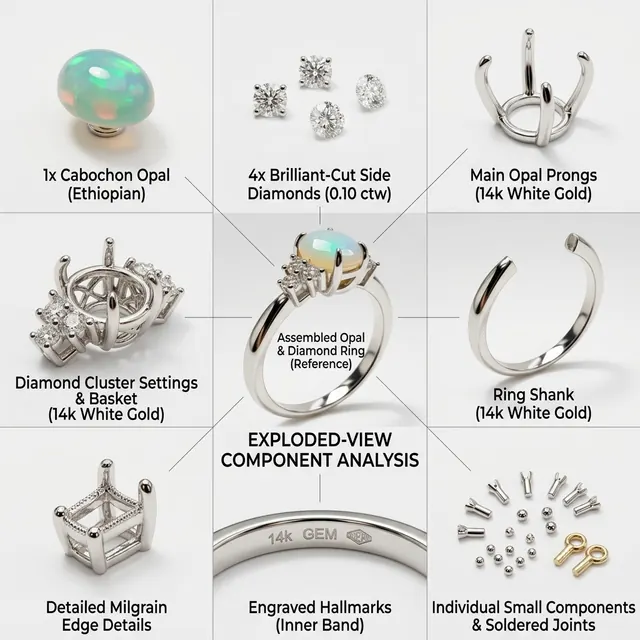
A generated component view needs factual review.
This existing illustrative board proposes hidden parts and materials. Verify its labels and construction against the real item or manufacturer records. Generated hallmarks, gemstone descriptions, and unseen components cannot establish the product specification.
Inspect full-size exampleBuild a useful set of product views
Choose the source and coverage
Select an approved image and list the views or details you need. Keep additional real photographs nearby if the set may show a hidden side, complex hardware, or an important label.
Generate the view set
Open 9× Product Views, provide the source, and review the available controls and credit requirement. Treat the generated set as candidates for review, rather than an automatically approved catalog.
Compare every view
Check the set against the physical item or real references. Keep the accurate and useful outputs. Correct or discard invented details before putting an image on a listing, ad, or product page.
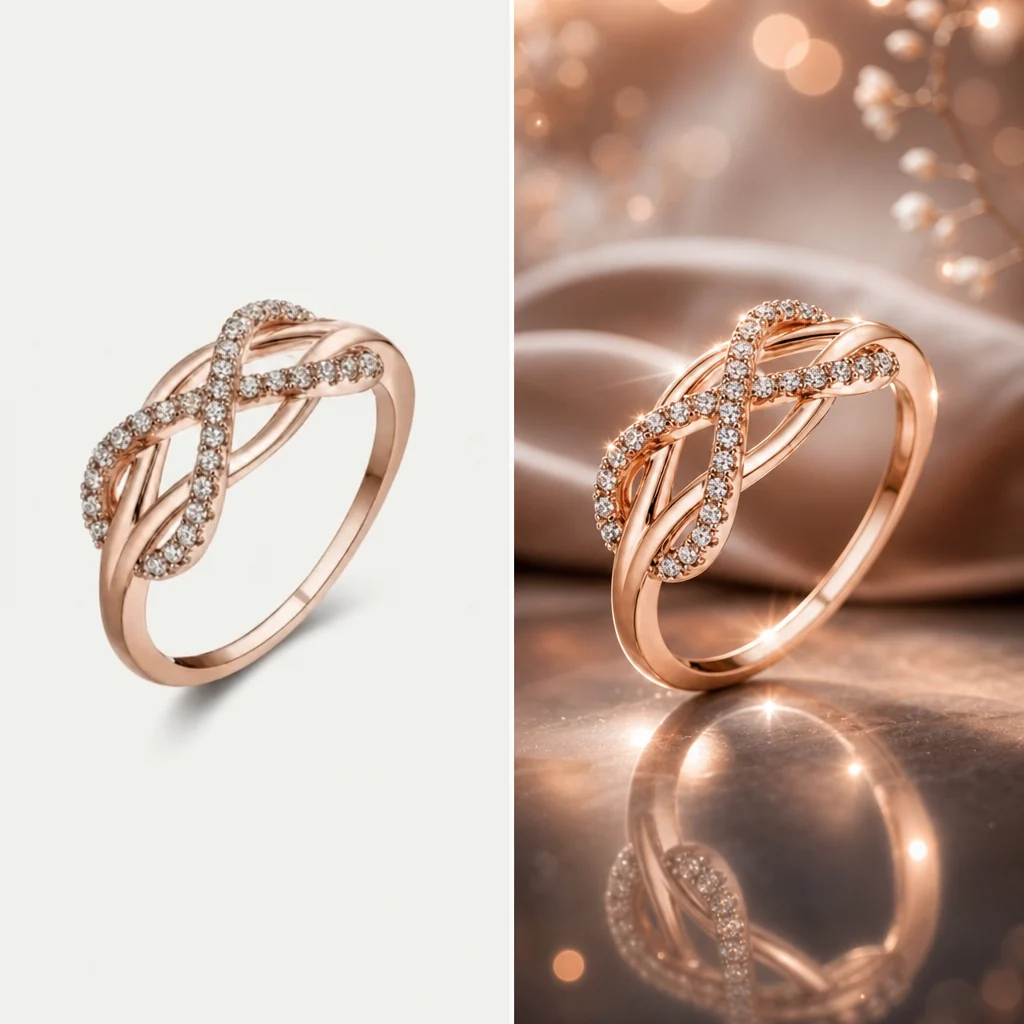
Compare construction at the detail level.
This separate jewelry example shows the kind of detail review each proposed view needs. Check the band, setting, stone arrangement, and finish against real references. A new background does not establish that an unseen angle is accurate.
Inspect full-size exampleWhen do you need another photograph?
Use another real reference when a view reveals construction, packaging information, a connector, or a surface the source does not show. An image model can infer a plausible view without reproducing the actual item.
A generated view set is not automatically a measured 3D reconstruction or a continuous 360-degree spin. These are different deliverables with different review requirements.
Fine jewelry, reflective materials, and small text are demanding cases. If accuracy is essential, use original photography for the critical detail and reserve generated views for supporting creative that passes review.
Your review checklist
Use this on your own result. You make the assessment.
0 of 5 checks marked complete.
Questions before you choose
Does one image contain enough information for every angle?
No. A single image cannot establish the exact appearance of a hidden surface. Supply real references or use real photography when that surface matters to the purchase.
Are nine views the same as a 3D model?
No. A set of images, a continuous spin, and an interactive 3D model are different outputs. Choose the deliverable your page needs and verify it in the intended viewer or layout.
Can I use only the views I approve?
Select assets based on accuracy and usefulness, rather than filling a fixed number of slots. Keep the source and review notes with the finished set.
Sources and product context
CREATR publishes this guide and offers the photo tools discussed here. The example is from our existing showcase; no cross-tool benchmark or conversion improvement is claimed. Product documentation checked October 29, 2026.
- Midjourney: editing with reference images
General image tools can also edit existing images and use references. Compare the actual workflow rather than assuming these features are exclusive.
- Shopify: product media
Review how images, videos, and 3D media will appear on the product page. Check the requirements of your actual store and theme.
Try the workflow with your product.
Keep your approved source beside the result. Choose the assets that meet your brief, and review the details before publishing.