AI Product Photography
Studio and lifestyle images
Create product photos in a selected scene. Start here when your listing needs a new visual setting.
CREATR is an AI creative platform for e-commerce product photos, videos, ads, 3D models, and written content. Explore 31 tools and workflows, including ten writing formats and eight Signature Collection modes.
One free generation in each of 6 included tools. No credit card required.
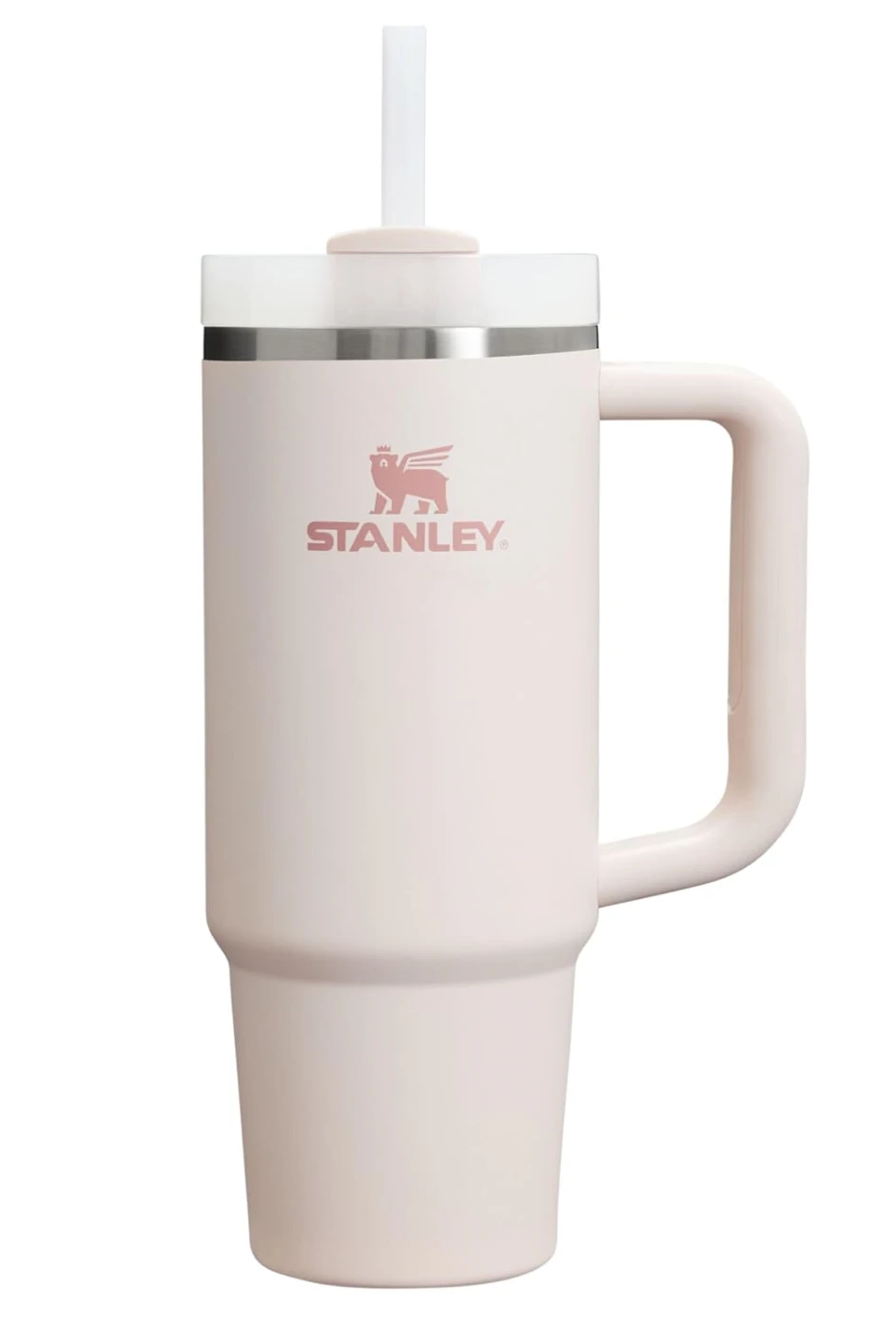 Source photo
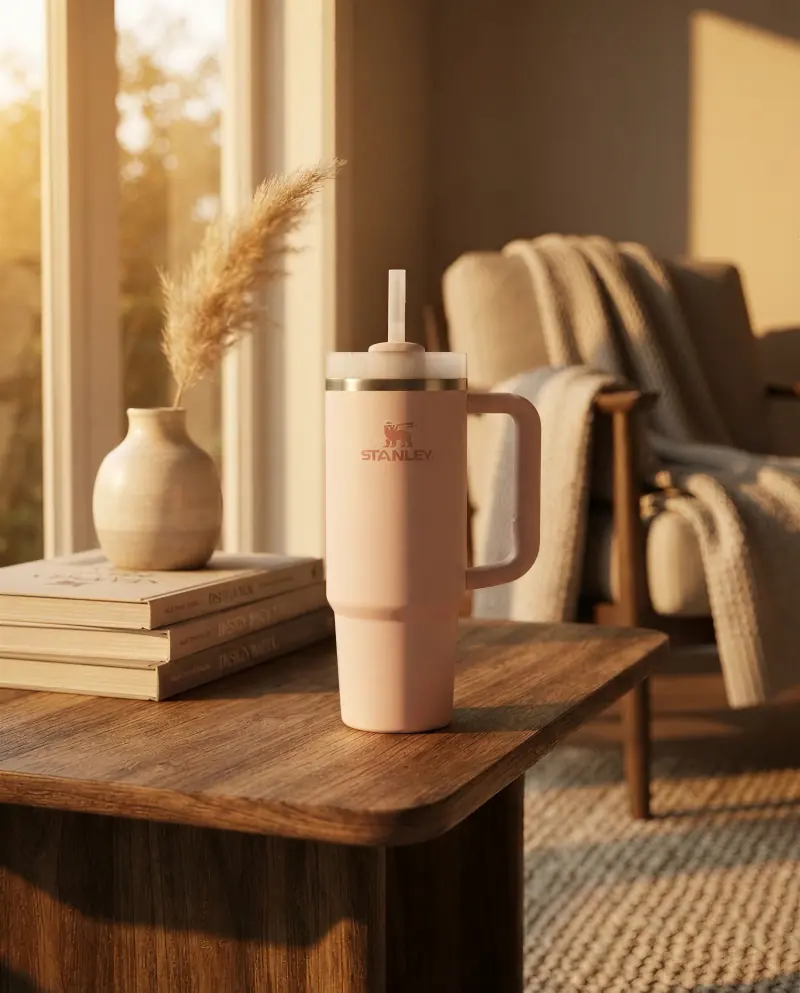 Generated scene
Product information reviewed by CREATR.
| You need | Start with | Output | Workflows |
|---|---|---|---|
| Listing photos and lifestyle scenes | Product photography | Product images, coordinated sets, on-model photos, and measurement callouts | 6 |
| Product motion and ad creative | Video & ads | Product clips, avatar-led videos, and platform-specific ad concepts | 3 |
| A campaign image or film treatment | Signature Collection | Posters, breakdown illustrations, rendered images, and five film styles | 8 |
| Image editing or an interactive model | Editing & 3D models | Edited images or a reviewed 3D model with GLB export | 2 |
| Words for a listing or campaign | Content writing | Ten formats, from product listings and social posts to scripts and email | 10 |
| A brand reference or saved assets | Brand & asset tools | Brand direction, an organized collection, and asset exports | 2 |
Create the main image, the lifestyle scene, the extra views, and the details that answer a shopper’s questions. These six tools cover different parts of a product image set.
Studio and lifestyle images
Create product photos in a selected scene. Start here when your listing needs a new visual setting.
A new product setting
Choose a curated backdrop, try a surprise setting, or describe a custom scene around your product.
A nine-image product set
Explore a set of generated product views. Check shape, labels, and details against your original before using them.
Coordinated photo collections
Choose a pack when you need several related images for a product launch or listing refresh.
On-model fashion visuals
Create fashion and apparel imagery with a model. Review garment fit, texture, and details in each result.
Measurement callouts on product images
Add height, width, and depth information to a product photo. Supply accurate measurements rather than estimating from the image.
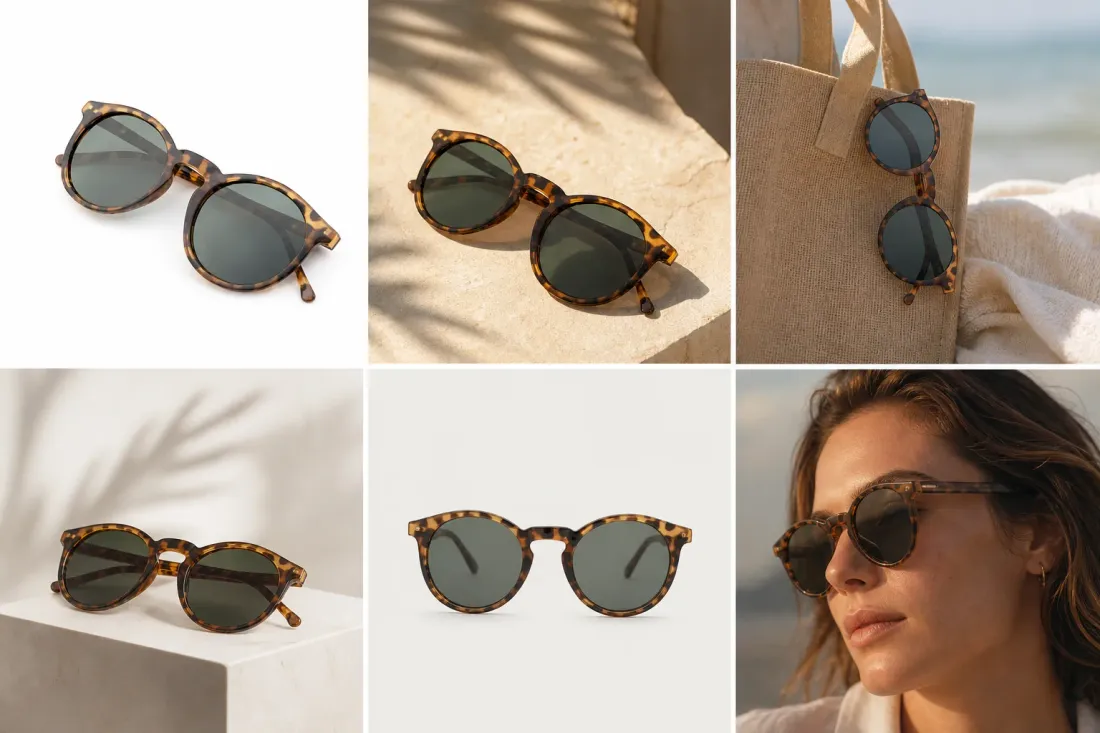
Existing source/result examples across five product categories. Compare both sides and review the product details before publishing your own result.
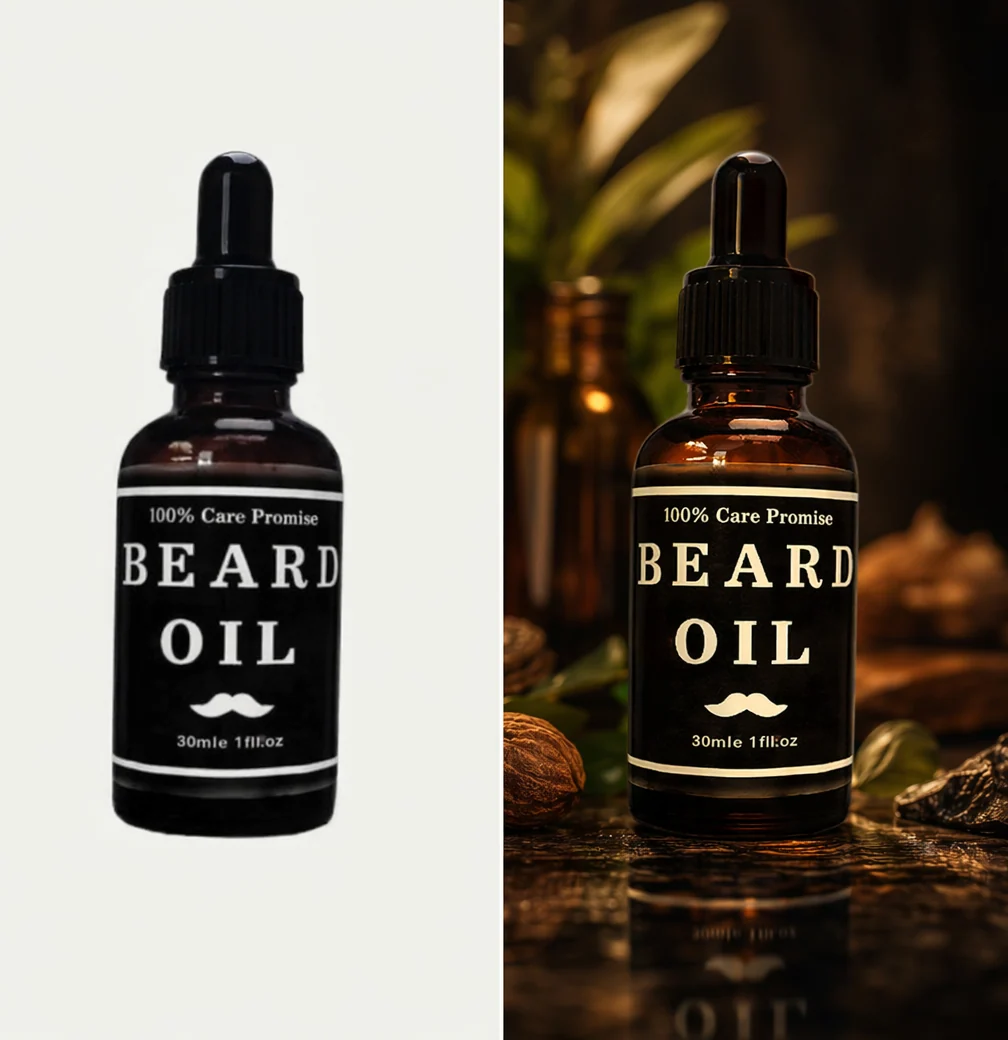
A simple bottle photo becomes a styled product scene.
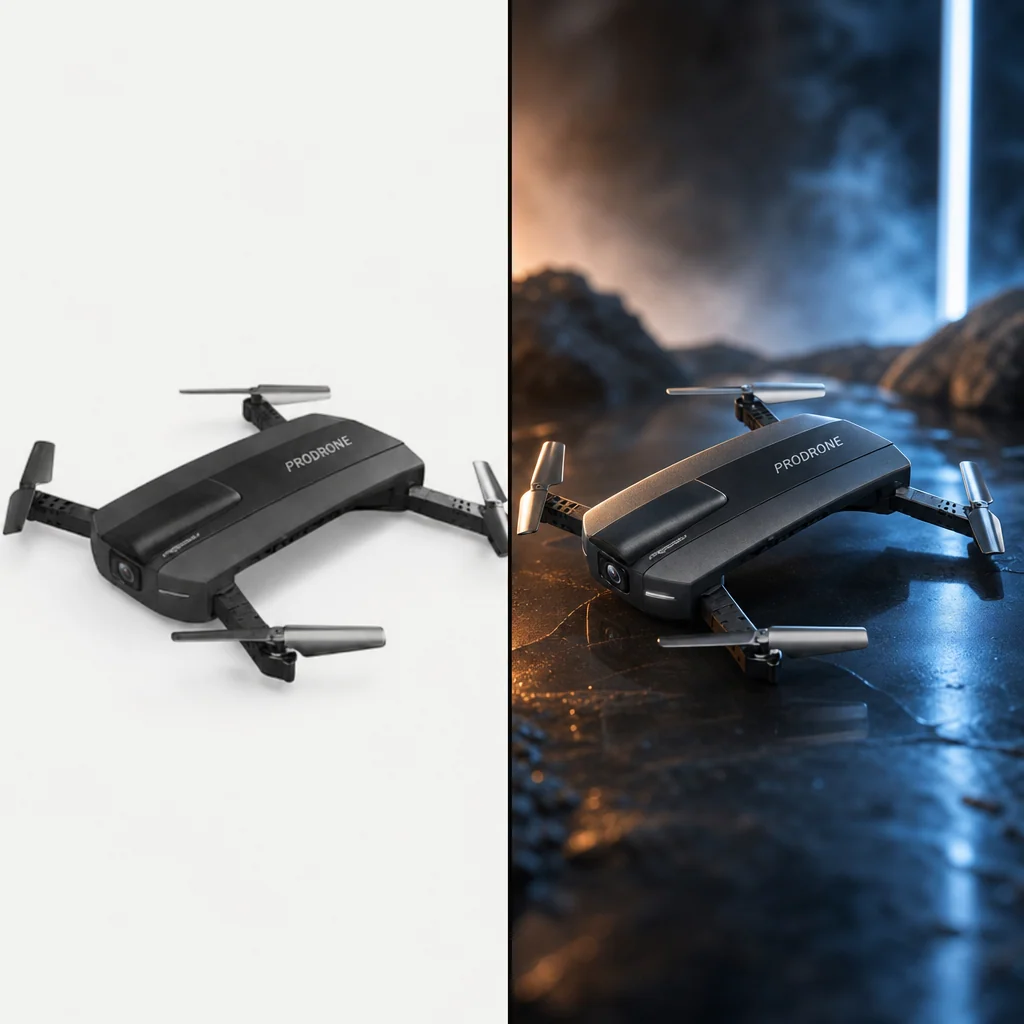
Explore a campaign setting around a detailed product.
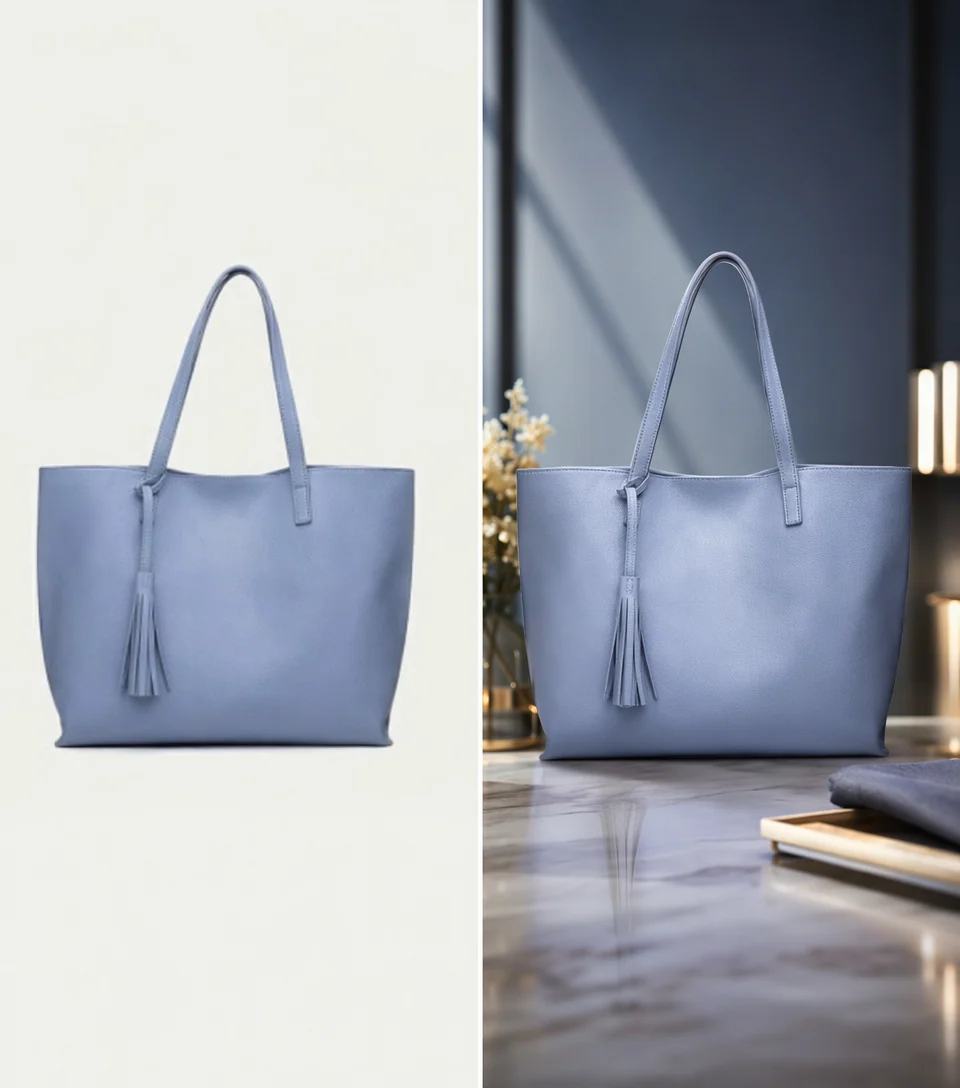
Place a catalog product into a lifestyle context.
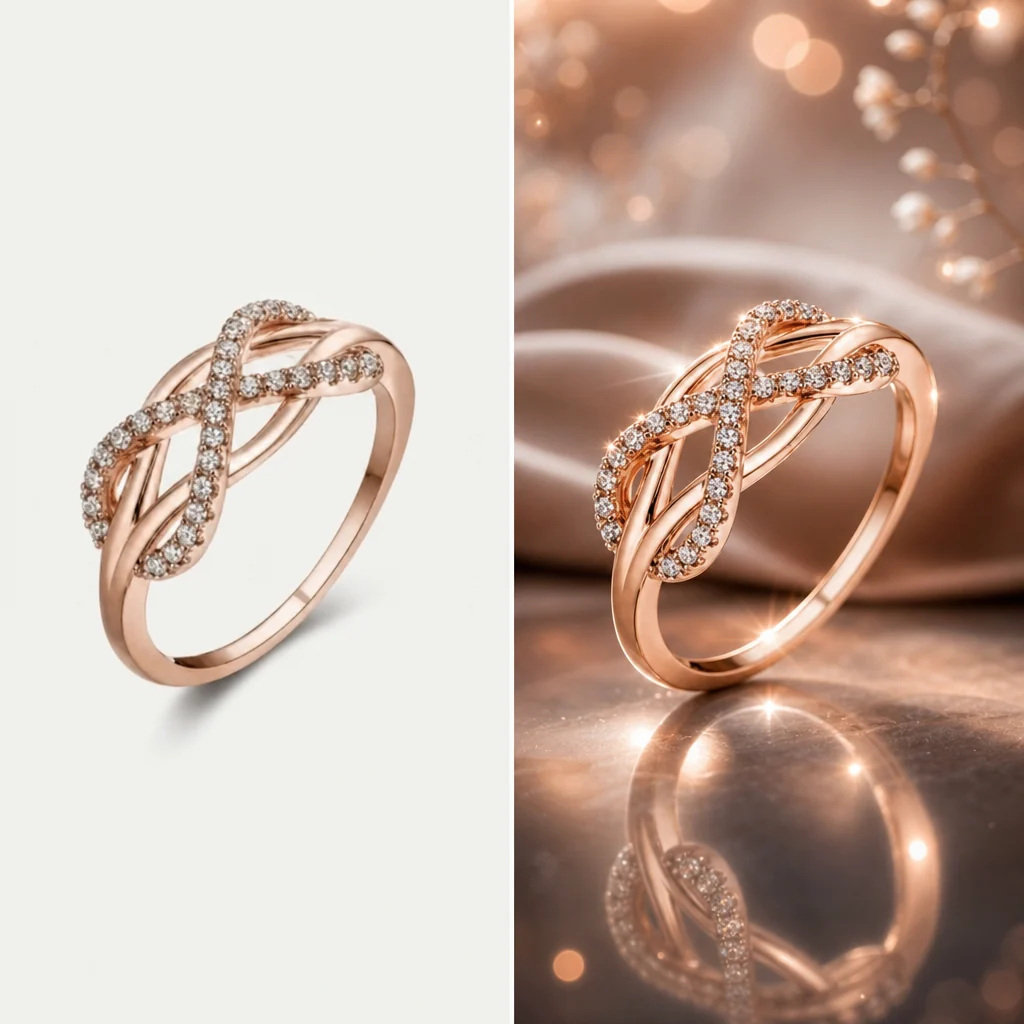
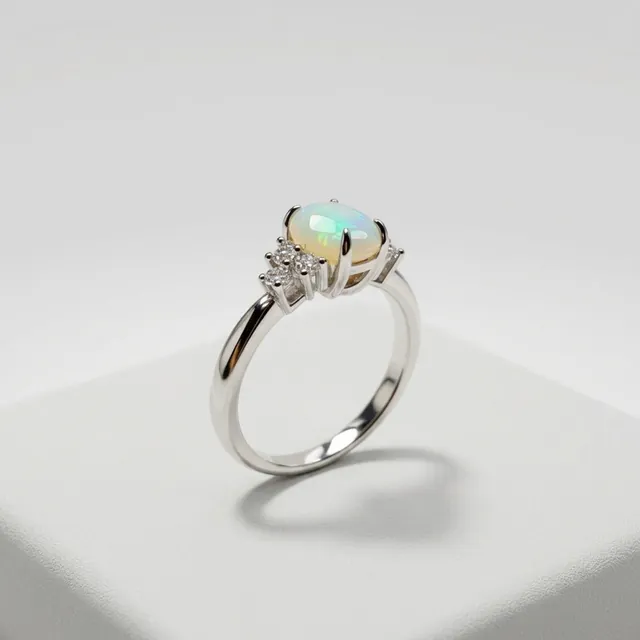
Try a new setting and review the stones and metalwork.
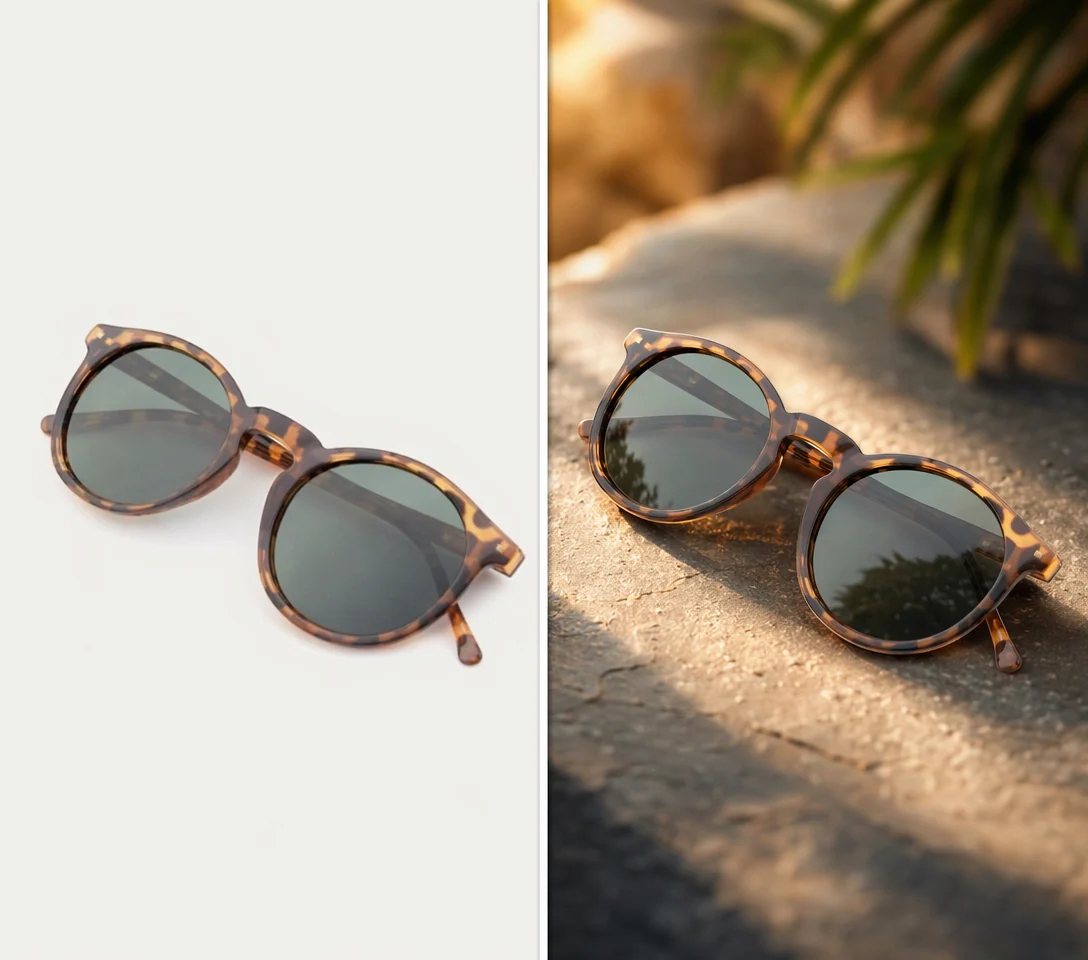
Build a scene for a collection or seasonal launch.
Choose product-focused motion, an avatar-led presentation, or an ad built for a specific placement. Play the examples to inspect the movement and product details for yourself.
Short product videos
Animate a product photo with a selected video style. Use it for product-focused motion and short campaign clips.
Avatar-led product videos
Choose an avatar, prepare a script, and build a presenter-led video concept. Review speech and product appearance.
Image and video ad creative
Choose a platform and format, then create campaign assets around your product and message.
Choose a campaign treatment directly: three image tools and five film styles. A product render creates an image; choose the 3D model tool below when you need an interactive model instead.

Campaign poster images
Create a poster treatment around a product image. Review any generated lettering, offers, and product claims before use.
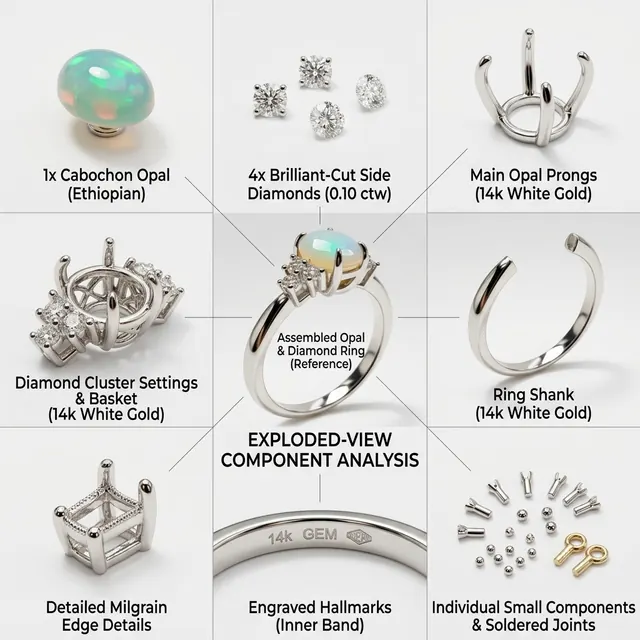
Component breakdown illustrations
Explore a visual breakdown of the subject. Verify every component and label; a generated illustration is not a technical specification.
Rendered product images
Give a product a studio-rendered treatment with lighting and depth. This output is a still image, not a downloadable 3D model.
Liquid and splash product films
Build a dramatic product-film concept with liquid movement and a splash treatment.
Rotating product reveal videos
Create a rotating studio-film treatment. It is a rendered video rather than an interactive 360° product viewer.
Creator-style demonstration films
Create a product demonstration concept with a person interacting with the item.
Tactile product-film concepts
Explore close-up handling and unboxing-style motion. Check hands, packaging, and product details in the result.
City billboard film concepts
Place the product into a cinematic city-billboard concept. The result is creative media, not an actual outdoor ad placement.
Improve an existing photo or generate an interactive product model for closer inspection. Keep an accurate source image nearby as you review the result.
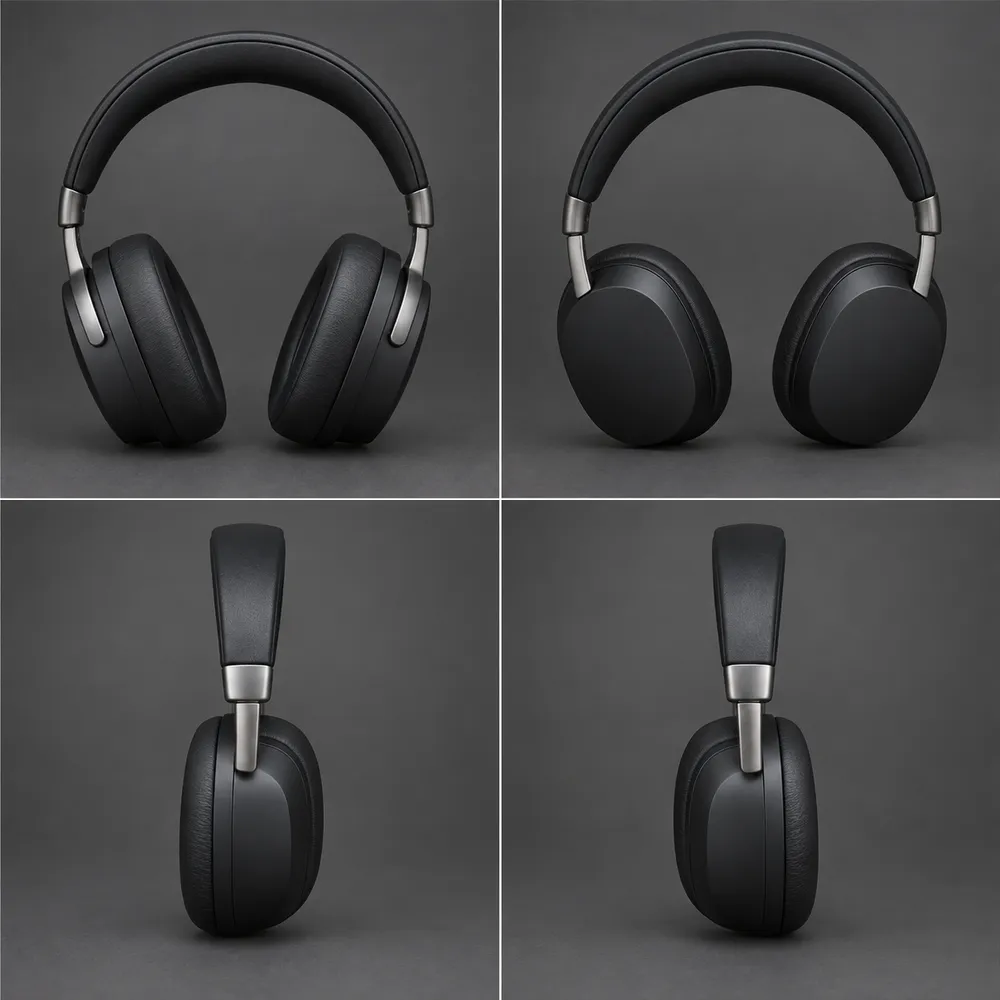
Edited and upscaled images
Refine an existing image with editing and enhancement tools. Useful when you need to improve a photo you already have.
Interactive models and GLB files
Generate a 3D model from a product image. Review its geometry, download the GLB, or use the Shopify publishing workflow.
Content Writer includes ten dedicated formats, each with its own brief. Open the format you need directly. Add verified product facts, then review the draft for accuracy and your brand’s voice.
Titles, benefits, and product descriptions
Draft the copy a shopper needs to understand the product. Supply specifications, benefits, and the destination platform.
Captions, hooks, and social posts
Prepare social copy around your product and message, with a brief for the platform and audience.
Article briefs and drafts
Develop a structured article from a topic and brief. Verify research, quotations, and source attribution before publishing.
Headlines, benefits, and page copy
Shape the words for a campaign page, from the opening promise to the call to action.
Subject lines and email copy
Draft launch, promotional, or follow-up email content for your audience and offer.
Ad headlines, angles, and calls to action
Explore messaging for a paid campaign. Check every offer and claim against the actual product and promotion.
Hooks, scene beats, and voiceover
Plan the story before generating a video. Build the script around the product, placement, and duration.
Announcement drafts and boilerplate
Turn real company news into an announcement draft. Include only verified events, dates, and approved quotations.
Search-focused content drafts
Prepare a page around a topic, audience, and search intent. Review usefulness and facts; no ranking outcome is guaranteed.
Revised and refined copy
Improve an existing draft for clarity, tone, or structure while checking that the original meaning stays intact.
Set a visual reference for the brand and return to the assets you have already made. These supporting tools help carry a project from the first brief to the next campaign.
Brand colors, voice, and visual direction
Develop a brand reference for your creative brief. Check which brand controls each generation workflow supports.
Saved assets, organization, and exports
Browse and manage generated media, return to earlier results, and prepare the assets you want to use next.
You do not need every format for every product. Start with the gap in your listing, then add the assets that help a shopper understand it.
Plan your product image setUse a sharp, well-lit source with visible labels and a clear product shape. AI cannot reliably reconstruct details the image does not show.
Pick a scene for a listing, a short clip for a campaign, or a 3D model for closer inspection. Check each tool’s settings and credit cost before generating.
Compare color, shape, text, logos, and materials with your source. Generated views and 3D models are approximations; check them carefully before a customer sees them.
Use CREATR’s AI Product Photography or Background Builder when you need a product in a new setting. Choose Photo Packs for coordinated image collections, 9X Product Views for a nine-image set, and Virtual Model Photography for on-model fashion imagery. Product Dimensions adds measurement callouts using dimensions you provide. For motion, Product Video Generator creates short product clips, UGC Video Creator uses an avatar and script, and AI Ads provides image or video campaign workflows. The Signature Collection adds three image treatments and five film styles. Image Enhancement edits existing photos, while 3D Product Models creates interactive models with GLB export. Content Writer includes ten selectable formats for listings, social posts, articles, landing pages, email, ads, scripts, announcements, SEO content, and rewriting. Start with the asset your listing or campaign needs, check the selected tool’s credit cost, and compare the result with an accurate source before publishing.
CREATR’s 3D Product Render creates a still image with rendered lighting and depth. Studio 360° Film creates a rotating product-reveal video that viewers can play and pause. 3D Product Models creates an interactive model that can be reviewed, downloaded as a GLB file, or used in the Shopify publishing workflow. Choose a render for a campaign image, a film for a motion placement, and a model when shoppers need an interactive product view. These are different output formats, so select the destination before generating. All three start from a product reference and can interpret details that the source does not show. Compare shape, labels, color, materials, and hidden surfaces with the actual product. A generated render, film, or model should be approved before it reaches a listing; keep original photography or verified measurements for details that require an exact record.
The website trial includes one generation in each of 6 selected tools: Product Poster, 9× Product Views, Creator Video, Fast Pack, 3D Product Model, Image Ad. It does not provide a spendable credit balance or free access to every generation tool. See the included trial tools.
Download and review assets for your intended listing or campaign. Check the destination’s current image and content requirements. The Shopify integration also supports connected store workflows; store connection and publishing are separate steps.
AI creates an interpretation of the source image. Extra views, textures, fine print, and hidden surfaces can differ from the actual product. Keep original photography for details that require an exact record, and approve each generated asset before use.
Try the included tools with your own product photo, then choose a plan for the work you need to create.
6 included tools · One generation each · No credit card