How can I create AI lifestyle product photos without changing the product?
Use a clear, approved source and keep the requested change focused on the surrounding scene. Ask for the product’s shape, color, label, logo, and materials to stay consistent, then compare the generated result with the original. If an important detail changes, reject or correct the image rather than publishing it.
Account required. Review the trial allowance and credit costs before generating.
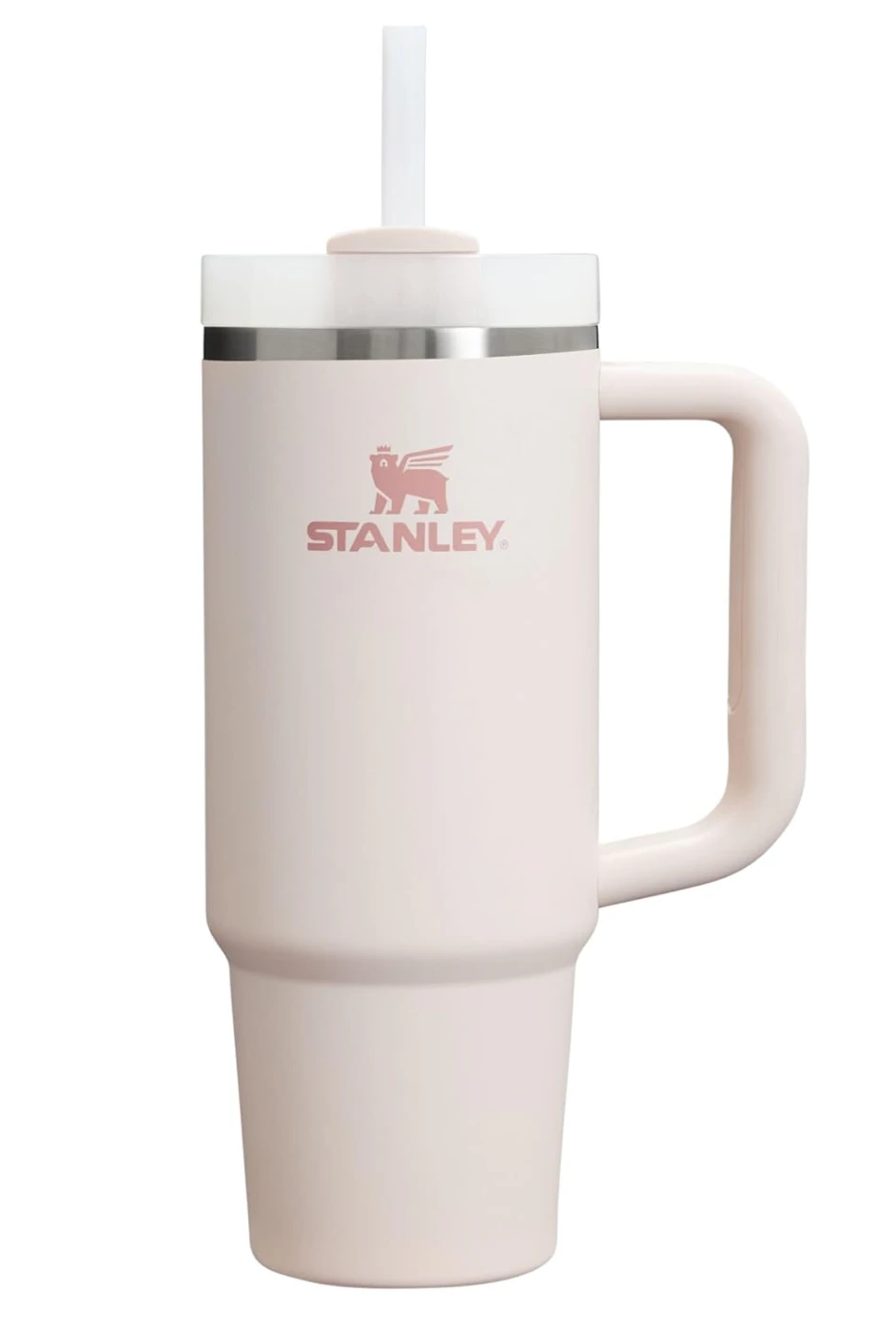
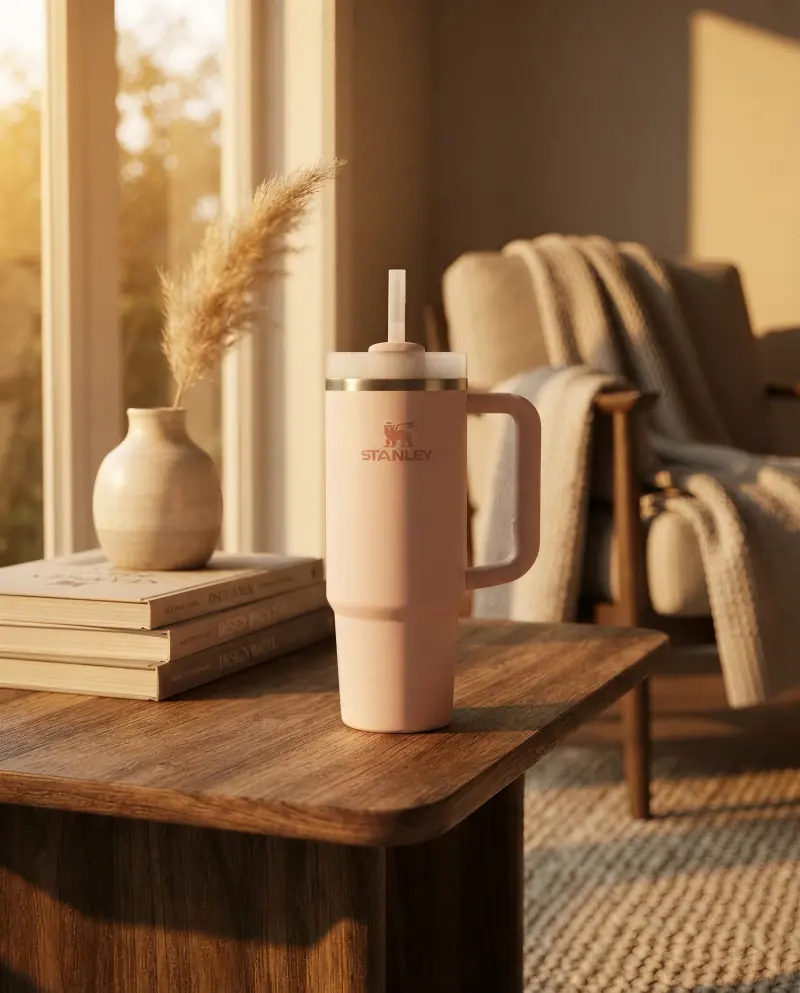
An existing CREATR lifestyle example, shown beside its product source. The scene changes lighting and context, so inspect color, silhouette, and branding before using the result. This example is not a promise of pixel-identical product preservation.
See the original CREATR showcaseChange the setting only as far as you can still verify the product.
Which details should stay under your control?
- A source that shows the real item
- Use an image with the whole product in frame, readable branding, and enough detail to judge the finish. A cropped edge or obscured label leaves the model guessing. Supply another real view when a new composition would reveal an unseen side.
- A scene with believable scale
- Choose surfaces, props, and surroundings that make sense for the item. Check the product’s size relative to nearby objects, the contact with the surface, and the shadow direction. A dramatic setting is not helpful if it misrepresents how the product is used.
- Branding and color at the viewing size
- Inspect the full-resolution file and the crop shoppers will actually see. Watch for altered letters, invented marks, missing hardware, and changed colors. Warm scene lighting can change perceived color, so keep a clean reference available.
- An image for a defined placement
- Decide whether the result supports a product page, an ad, or a seasonal campaign. Keep an approved source or controlled product view where shoppers need factual detail. Check the current image rules for each marketplace before publishing.
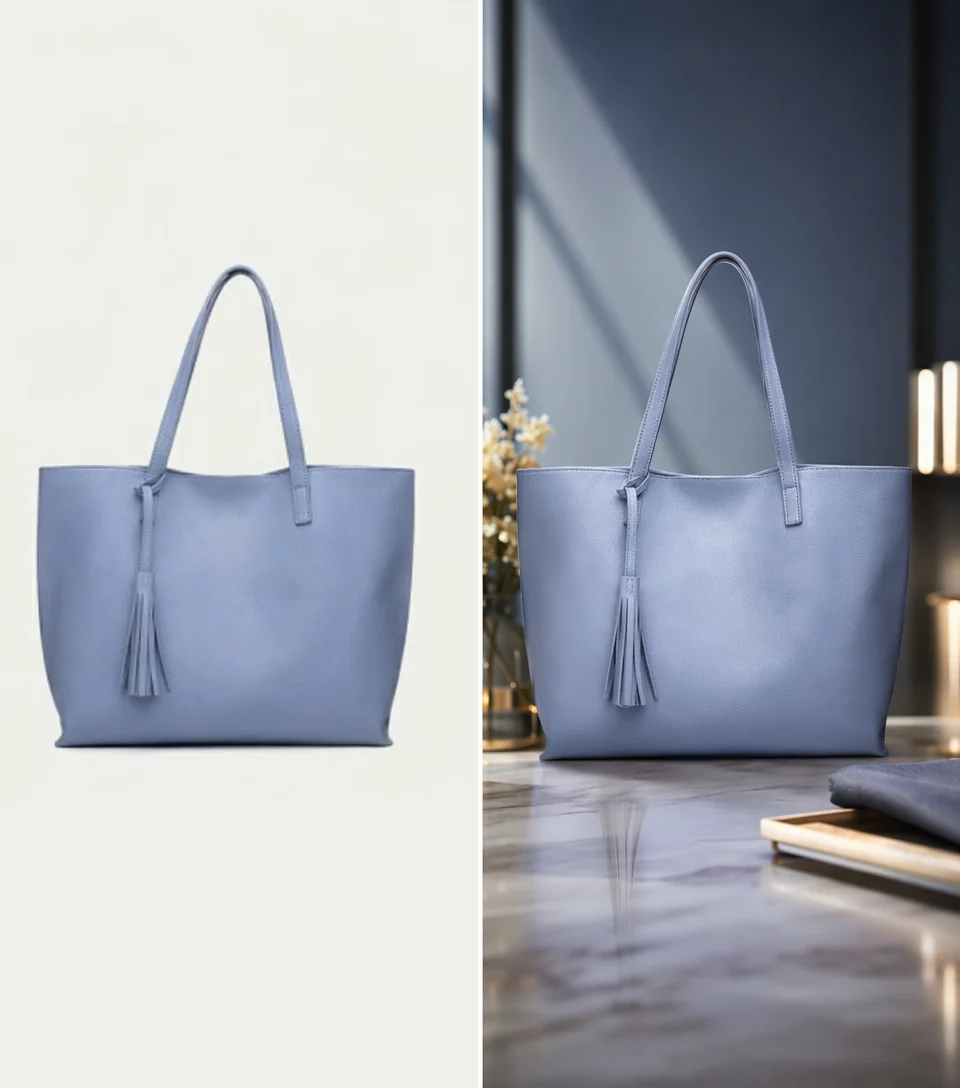
Check shape, hardware, and contact with the scene.
In this existing handbag example, compare the handles, tassel, seams, and silhouette before evaluating the room. Inspect the contact shadow and apparent scale as well. A new setting should not hide a changed product.
Inspect full-size exampleCreate a lifestyle scene with a review step
Approve the source first
Choose the correct product variant and list the details that cannot change. Keep the original available for comparison. If the source is already right for the placement, you can use it unchanged.
Describe the setting
In Background Builder or the photo tools, choose a scene or describe the surface, light, props, and mood. Avoid asking for a different product design when the task is a new environment.
Review, correct, and export
Compare the product before judging the background. Reject altered labels, colors, or parts. Inspect the final crop in its intended layout; regenerate, edit, or retain the source if the result fails the check.
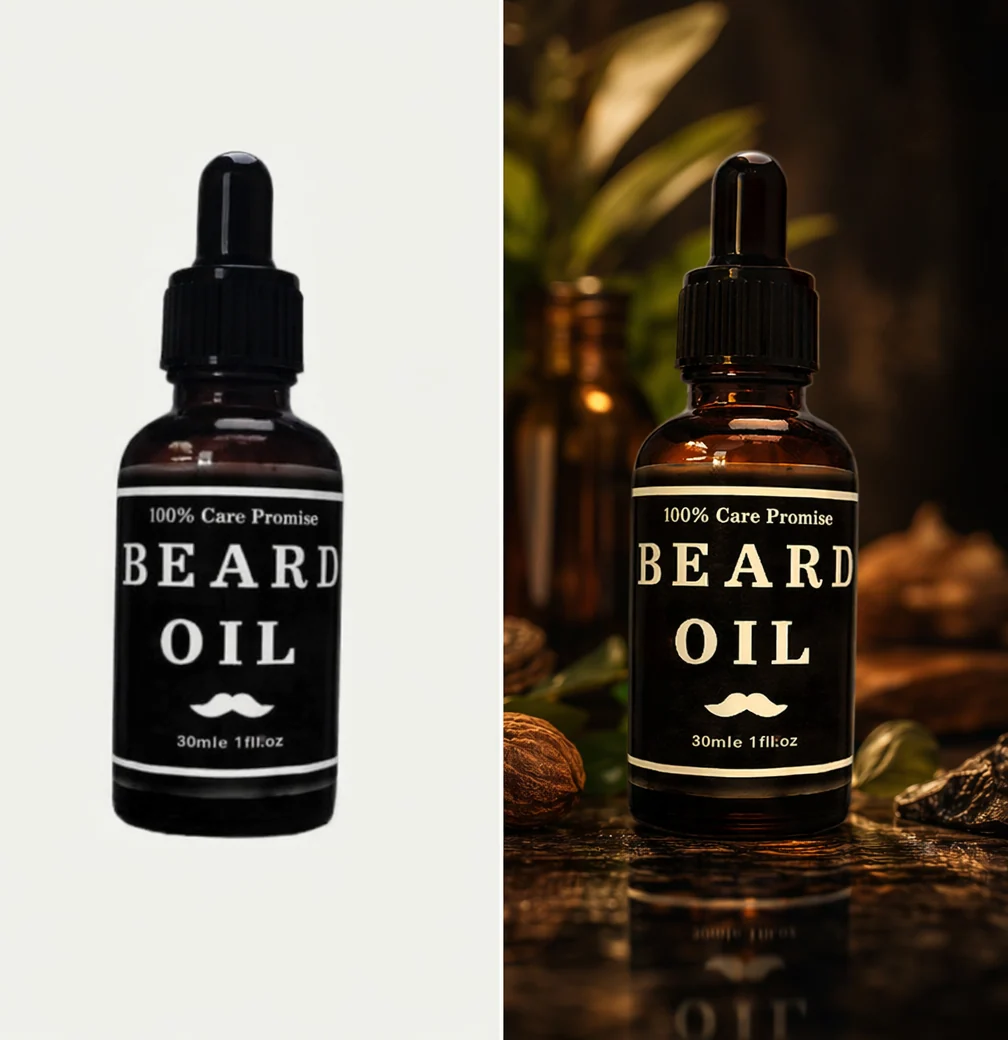
Read the label after the lighting changes.
Warm light can alter the apparent color of a bottle and its label. Compare the words and packaging with the approved source at full size and in the final crop. Keep or correct the result according to the actual product.
Inspect full-size exampleWhat can’t a single source guarantee?
A single photo cannot verify a hidden back, unseen mechanism, exact dimensions, or how a material behaves from another angle. Use real reference photography when those facts matter.
No generated scene is automatically suitable for every main listing image. Check the destination’s requirements and whether the image represents the product honestly.
Small text, transparent materials, reflections, and intricate details may need a more controlled edit or retouching. If exact preservation is essential, keep the product from the original and review the composite carefully.
Your review checklist
Use this on your own result. You make the assessment.
0 of 5 checks marked complete.
Questions before you choose
Can I guarantee the product stays pixel-identical?
Do not assume that from a generative workflow. If pixel-identical detail is required, use a process that retains the original product pixels and review the edges, lighting, and composite. Generated results still need inspection.
Should I use a lifestyle image as my only product photo?
Keep the images shoppers need to understand the item. A clean view, detail image, and lifestyle scene can answer different questions. Choose the mix based on the product and destination requirements.
What if the logo changes in the result?
Do not publish that version. Correct it with a controlled edit, try another result, or use the approved original. A convincing background does not make an inaccurate logo acceptable.
Sources and product context
CREATR publishes this guide and offers the photo tools discussed here. The example is from our existing showcase; no cross-tool benchmark or conversion improvement is claimed. Product documentation checked October 29, 2026.
- Midjourney: editing with reference images
General image tools can also edit existing images and use references. Compare the actual workflow rather than assuming these features are exclusive.
- Shopify: product media
Review how images, videos, and 3D media will appear on the product page. Check the requirements of your actual store and theme.
Try the workflow with your product.
Keep your approved source beside the result. Choose the assets that meet your brief, and review the details before publishing.