How to Make a Photo into a Video
A photo can become a video in two ways. A video editor can arrange still images with timing, pans, zooms, and transitions. An AI image-to-video tool can generate motion from the contents of a single image. Choose the approach that suits the story and the details you need to preserve.
What is the photo-to-video process?
A conventional photo video uses still images on a timeline. You control how long each image stays on screen, how the view moves across it, and how one shot changes to the next. This works well for a slideshow, a product overview, or a sequence that needs to keep the original photographs unchanged.
Image-to-video generation creates new frames from an image and a motion direction. It can introduce movement in the subject, camera, or setting. The result needs review because generated frames can change shapes, faces, labels, and other details.
Choose the method by what needs to stay fixed
For a sequence of customer photographs, a simple slideshow may be enough. You can preserve each original, control its time on screen, and use a gentle crop or zoom to guide attention. That is also useful when the photograph itself is the evidence, such as a documented construction detail or a comparison that must remain unchanged.
Generated motion fits a different creative job. You might want a short product introduction with a restrained camera move or a scene that feels more active than the still. Decide what the clip should communicate before choosing the effect. If the idea requires showing a feature opening, a mechanism working, or an unseen surface accurately, consider filming the real object.
Both approaches can appear in the same finished video. A controlled still can establish the product, a generated clip can support atmosphere, and recorded footage can demonstrate a function. Keep those jobs clear so the viewer understands what each shot is showing.
An alternative: turn a product photo into a video with CREATR
If you already have an approved product image, use CREATR’s Product Video Generator to create a short motion asset from it. Start with the product you want to show, choose the available motion style, and add a focused scene direction where the selected workflow supports it.
A controlled source photograph remains your reference. Compare the product throughout the clip before using the result on a product page, in a social post, or in an advertisement.
Choose an image that supports the movement
Start with a sharp, well-lit image and a distinct subject. Keep important details away from the edges if the final crop may change. For a product clip, show the complete item and make labels, materials, and recognizable features easy to inspect.
Portraits, landscapes, and illustrations can also be starting points for image-to-video tools, but match the tool to the task. CREATR’s workflow here focuses on product content. Use AI Product Photography or Image Enhancement when the source needs preparation before animation. Image Enhancement prepares still images; use a video editor for clip trimming, audio, and final sequencing.
Choose motion that the source can support. A gentle push-in may require less invention than a large rotation that reveals unseen surfaces. If an important detail is unclear in the original, improve the source before generating motion.
Write a brief that another person could review
Put the intended viewer, placement, and message into a few plain sentences. An introductory clip for a product page has a different job from an advertisement with an offer. Name the item, identify the detail that matters, and decide whether the viewer needs to see the whole product throughout the shot.
Then separate the fixed details from the creative direction. Fixed details might include the bottle’s printed label, a bag’s handles, or a shoe’s sole and panel arrangement. Creative direction might describe the setting, the pace, or the camera’s movement. This makes review more specific than asking whether the result looks impressive.
Keep the brief beside the source image when reviewing outputs. If another person takes over the task, they should be able to understand what must remain accurate and what variation is acceptable. That record is useful even when you reject the first result and begin again.
See a product still alongside a video example
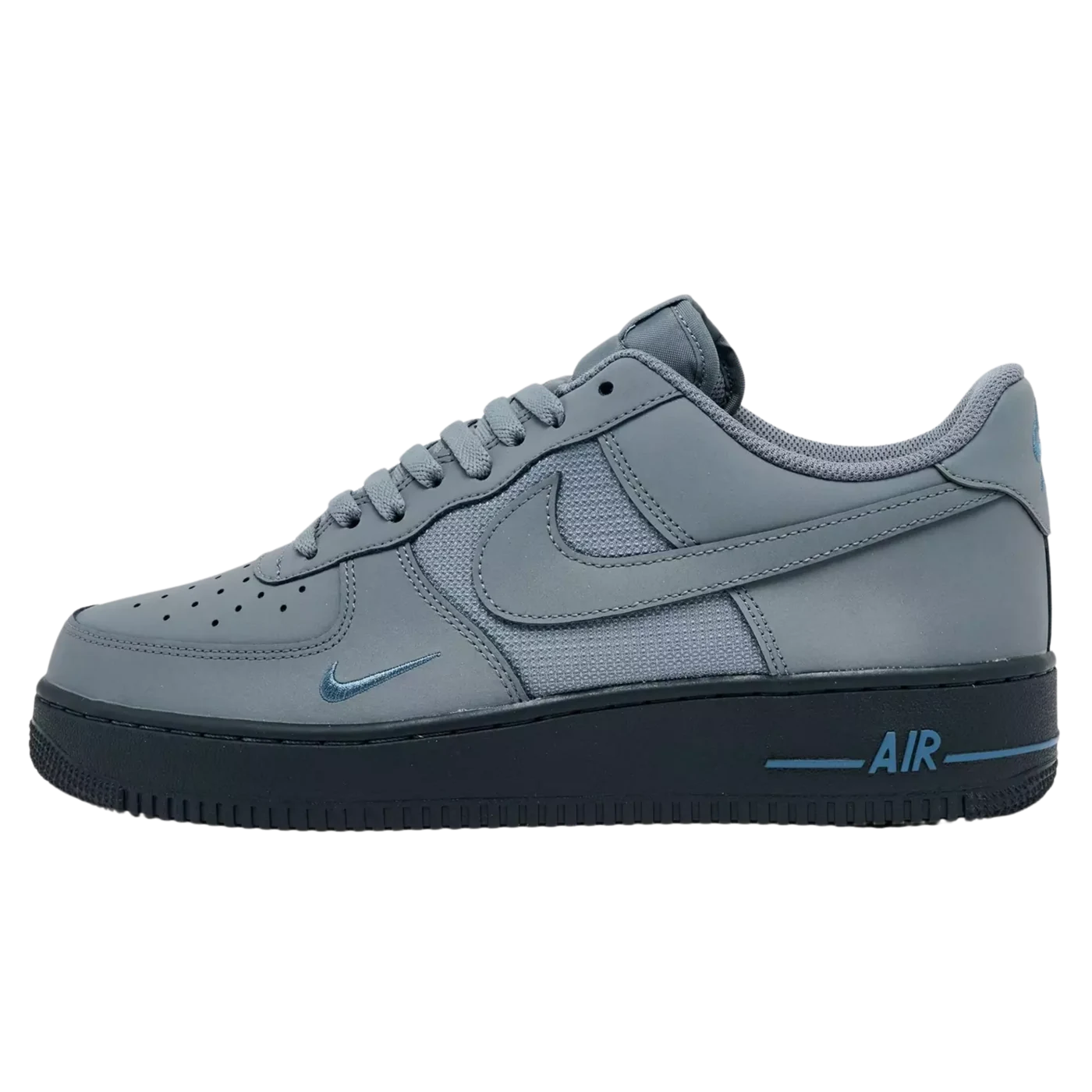
How to make a photo into a video
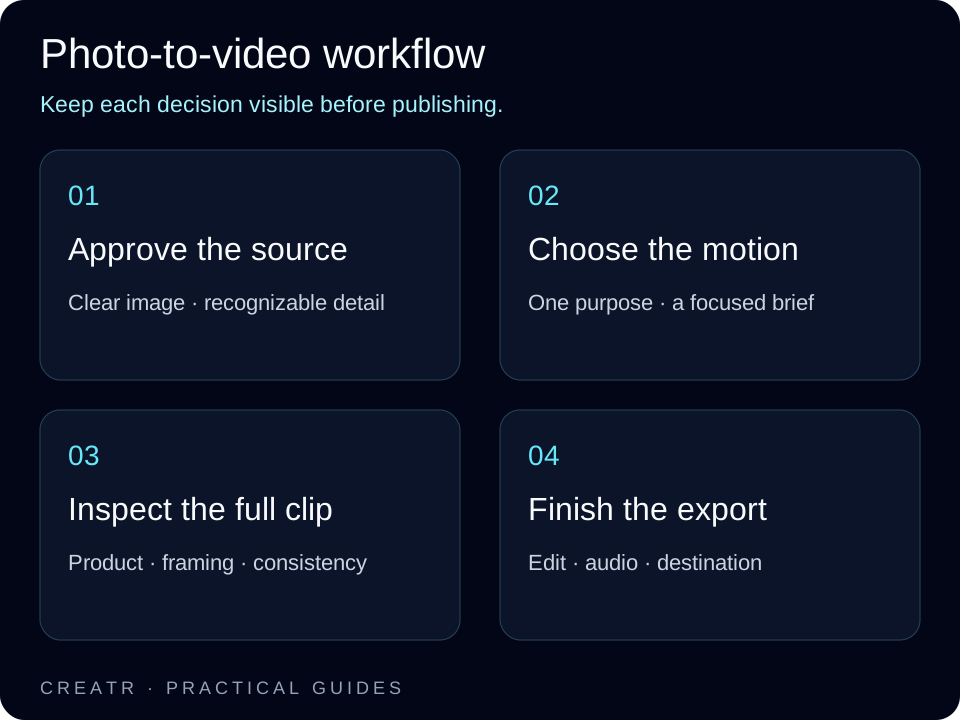
- Define the job. Decide whether the clip should introduce an item, show a detail, or support a specific campaign. Give the video one main idea.
- Choose the source. Upload an image you have approved. Keep the original available for comparison.
- Set a focused motion direction. Describe what should move and how. For example, a gentle camera push-in and a quiet background provide a clearer brief than several competing movements.
- Generate and inspect. Watch the entire result. Check the product, framing, background, motion, and any printed text across the clip.
- Finish the sequence. If needed, use a video editor to trim the clip, arrange additional shots, and add captions or permitted music.
- Check the final placement. Export for the intended format, then preview the finished video at the size and aspect ratio your audience will see.
If the result drifts from the source, simplify the movement or choose a clearer image and try again. Keep an accurate still image or film the real product when a generated clip cannot show the required detail reliably.
Example: plan a restrained product introduction
Imagine an introductory clip for a labeled skincare bottle. The job is to make the packaging easy to recognize while giving the product page some movement. A useful brief could ask for a gentle camera push-in toward the front label, with a quiet background and the bottle remaining upright. This is an illustrative brief, not a promise of a particular generated result.
Review that clip against the job you defined. Does the label remain readable? Does the bottle keep the same shape? Does the movement give the viewer time to understand the product? If the answer is no, simplify the direction before adding more atmosphere. A faster or more elaborate move will not solve an accuracy problem.
Change one part of the brief at a time when revising. Altering the source, setting, movement, and crop together makes it harder to understand which choice helped. Keep the accepted version and its source together once the clip is ready for final editing.
Review product details before judging the edit
Watch the clip once for the overall movement, then inspect the details that carry product identity. Look at the opening, middle, and ending frames, and replay any moment that seems unstable. A problem that appears briefly can still be noticeable when a customer pauses the video or watches it more than once.
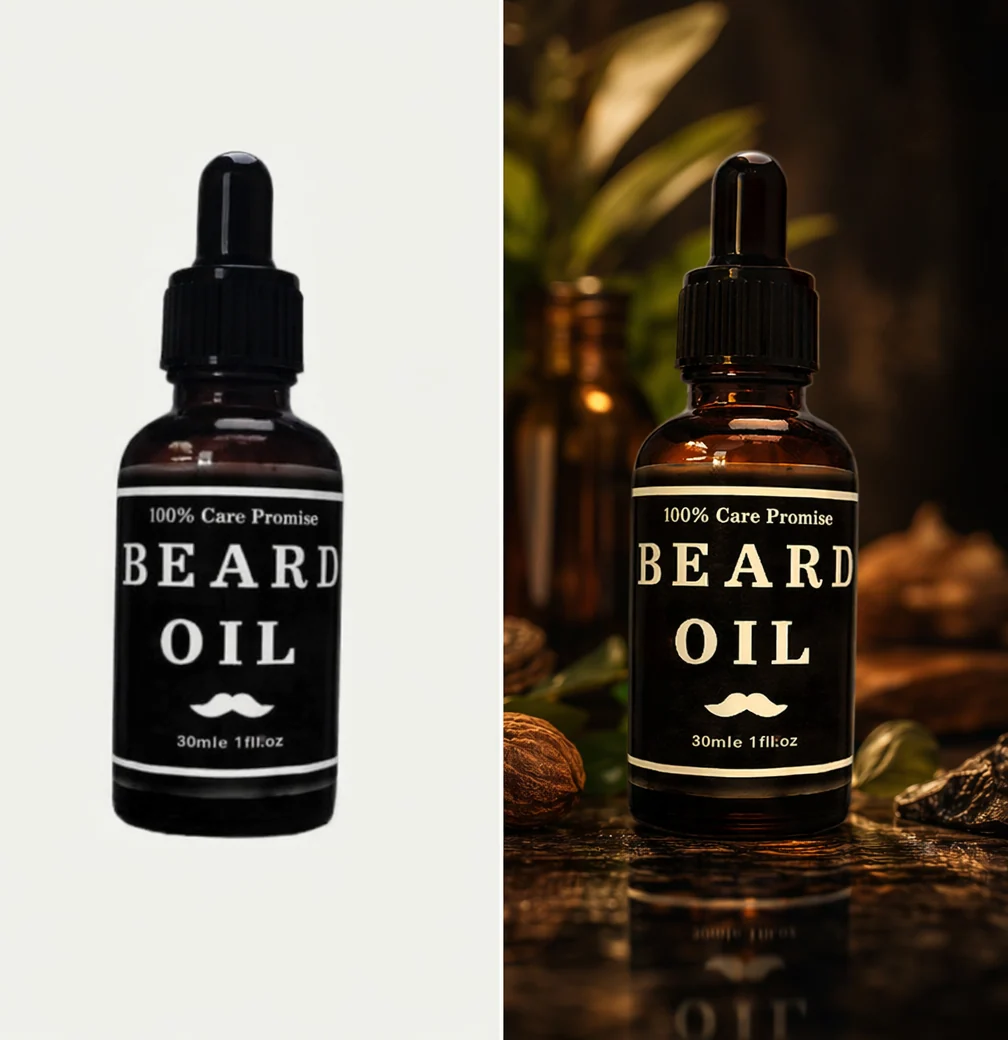
For packaging, compare the words and their arrangement rather than checking only for something that resembles text. For apparel, inspect seams and closures. For a product with several components, check that the same parts remain present. A convincing setting does not make a changed item acceptable.
Once the representation is sound, review pacing and composition. Make sure the clip begins with something understandable, keeps the main subject visible, and ends at a point that works in the intended sequence. Keep notes specific enough to guide the next revision.
Troubleshoot common photo-to-video problems
The product changes during the clip
Compare the result with the source and identify the exact change. It might be a label, an edge, a handle, or the overall silhouette. Try a clearer reference or a more restrained movement, then review again. If the required accuracy is still missing, use the original still or recorded footage for that part of the story.
The motion distracts from the subject
Return to the image’s job. If the viewer needs to read a front label, rapid movement and a changing background may work against that goal. Reduce competing activity and give the subject more time on screen. Judge the result at its intended display size, not only in a large editor preview.
The subject is cut off in the final format
Check the target shape before generating or editing the clip. A horizontal source may leave little room for a vertical crop. Keep important details inside the intended view and make a separate version when one crop cannot serve every placement. Preview the actual output rather than assuming the editing canvas matches the destination.
Finish the video for its destination
Keep the approved clip as a master and make the final sequence in a video editor when you need multiple shots, music, captions, or an end card. Give on-screen text enough time to be read. Check that captions stay clear of the product detail they are meant to explain.
Preview the edit with sound and without it. The main visual idea should remain understandable when audio is unavailable. When you do add a track, make sure it fits the pacing and does not obscure speech or important product sounds. Confirm that you can publish the audio in the intended context.
Export a version for each placement you plan to use. Check the current requirements for the destination, including its accepted format, dimensions, duration, and file size. Shopify’s product-media guidance is a useful reference when the clip will appear in a store. Keep a still-image fallback and test the actual product page on a phone.
Name the exported file so the team can recognize the product, version, and intended placement. Keep the source image, brief, approved clip, and final export together. That makes later updates easier when the packaging changes or the campaign needs a different ending.
Use the clip in your product-content workflow
A short product video can support a listing, a launch, or a social campaign. For advertising, AI Ads Generator helps you work on the campaign creative, while AI Content Writer can help draft copy from real product details. Check every offer and claim before publishing.
Use AI UGC Creator when the format calls for a presenter and a script, or Product Photo Packs when the launch also needs a coordinated still-image set. Choose the tool by the asset’s job rather than adding motion to every image.
For a broader starting point, read the AI product photography guide and the product-video guide.
Photo-to-video FAQ
How do you make a photo video?
For a slideshow, place photos on a video timeline and choose their duration, movement, and transitions. For AI-generated motion, upload a suitable image to an image-to-video tool, choose a focused direction, and review the generated clip before editing or sharing it.
Which photos should I include?
Choose sharp images with a clear subject, good lighting, and room for the final crop. Simple backgrounds make the subject easier to assess. For product content, use an accurate source that shows the details customers need to recognize.
When should you edit a clip?
Edit after the generated movement and product representation are acceptable. Then refine timing, framing, captions, and the sequence. Trimming a clip will not repair a product detail that is wrong in the frames you keep.
Can I add music to a photo video?
Yes. Add music in a video editor or another publishing workflow that supports audio. Use a track you have permission to publish, check the destination’s usage rules, and preview its volume alongside narration and other sound.
What makes a video engaging?
Start with a clear subject and one useful idea. Choose movement that helps the viewer follow it, keep the pacing purposeful, and finish with a relevant next step. Preview the whole clip so the visuals, text, and sound work together.
Start with a product photo you trust
Choose a clear source, keep the motion brief focused, and approve the result before publishing. For the product workflow described here, start with CREATR’s Product Video Generator.