White Background Product Photos for Online Stores
White background product photos give shoppers a clear view of an item and help a catalog look consistent. You can create them with a camera, a white backdrop, and controlled lighting. If you already have a useful product photo, CREATR offers an alternative: prepare a white-background version from that approved image, then review the product details before publishing.
The regular photography approach
Write a short image brief before setting up
List the product, the destination, and the question each view must answer. A front view might establish the package and label, a close-up might explain the closure, and a wider view might show scale. This keeps the shoot focused and prevents a large folder of attractive images from becoming a substitute for useful coverage.
Choose one reference image for the catalog’s framing. Record the camera height, product orientation, and amount of surrounding space so another person can repeat the composition. Keep a separate note for intentional exceptions, such as a tall bottle or a wide furniture item. Consistency means applying the same visual rules thoughtfully, rather than forcing differently shaped products into an unsuitable crop.
Prepare the physical item too. Remove dust, check packaging for damage, straighten loose parts, and confirm that the sample represents the variant being sold. These details are easier to address before capture than to explain after a customer notices them.
For a physical shoot, place the product against a smooth white backdrop, use soft light to reveal its shape, and keep the camera stable. Leave enough room around the item for the intended crop. Check focus, white balance, reflections, and shadows before repeating the setup across a catalog.
This approach is useful when you need to document the actual material, label, packaging, or construction. Photograph the views that establish those facts. A new background cannot recover an unseen detail or correct a source image that misrepresents the product.
Light the product without losing its edges
A white object against white paper needs enough separation for its outline to remain visible. Before increasing exposure, inspect the rim, corners, and pale textured surfaces. If those details disappear, change the light direction or the relationship between the product and background. An image that looks bright on a small screen can still lose useful surface information.
Reflective products need a different kind of attention. Glass, polished metal, and glossy packaging show the surroundings in their surfaces. Look at those reflections as part of the product’s shape. Move lights, diffusion, or the camera in small steps, and compare the result after each change. Keep reflections that explain the object while reducing distracting highlights.
Take a reference frame before moving to the next item. Recheck color whenever the lighting or environment changes. If the image will be used to explain a subtle fabric shade or finish, retain a controlled photograph for that purpose instead of relying on a dramatic treatment.
An alternative: create the white-background version with CREATR
If the product is already clearly photographed, you may be able to prepare the listing image without setting up another shoot. Start with CREATR background removal or AI Product Photography, depending on whether you need to isolate the product or create a new treatment.
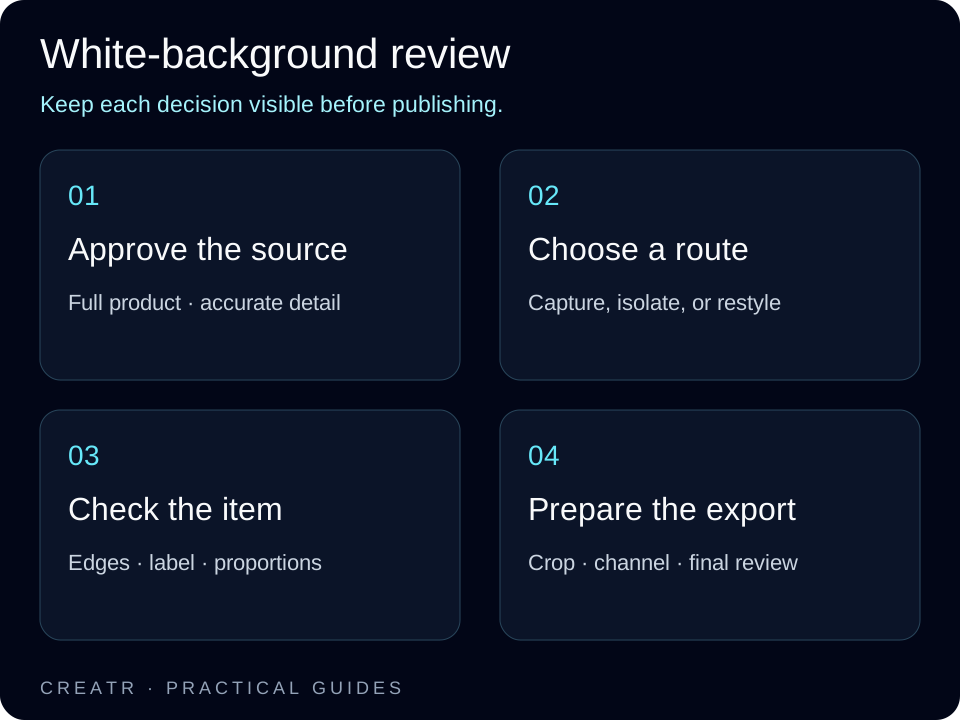
- Approve the source. Choose a sharp image with the full product visible and the correct color, packaging, and label.
- Prepare the white background. Isolate the item or create the required studio treatment. Keep the approved source available for comparison.
- Inspect the result. Check edges, transparent areas, reflections, logos, small text, and proportions. Correct or reject a result if the product has changed.
- Finish the export. Use Image Enhancement for the crop and preparation the destination needs, then check the final file against that channel’s current requirements.
Keep the original photograph when it already does the job. Use CREATR when a new background, crop, or supporting scene would help explain the product.
White background images for Amazon, Shopify, and online stores
Choose the destination before preparing the image. Amazon’s product image requirements distinguish the main listing image from supporting images. Main images generally need a pure white background and must meet the applicable category rules. Check the current requirements for your item before uploading.
A CREATR output still needs that check. A white-looking background alone does not establish marketplace compliance, and an attractive image is not ready to publish if its label or shape differs from the real product.
For a Shopify store, Etsy listing, or your own storefront, plan a consistent main-image treatment and the supporting views the page needs. Our Amazon product photography guide provides another starting point for a marketplace image set.
Turn an approved photo into supporting product content
A clean main image answers what the product looks like. Additional angles, close-ups, and in-use scenes can answer different questions. Plan them around what a shopper needs to judge: scale, materials, texture, fit, finish, packaging, and included pieces.
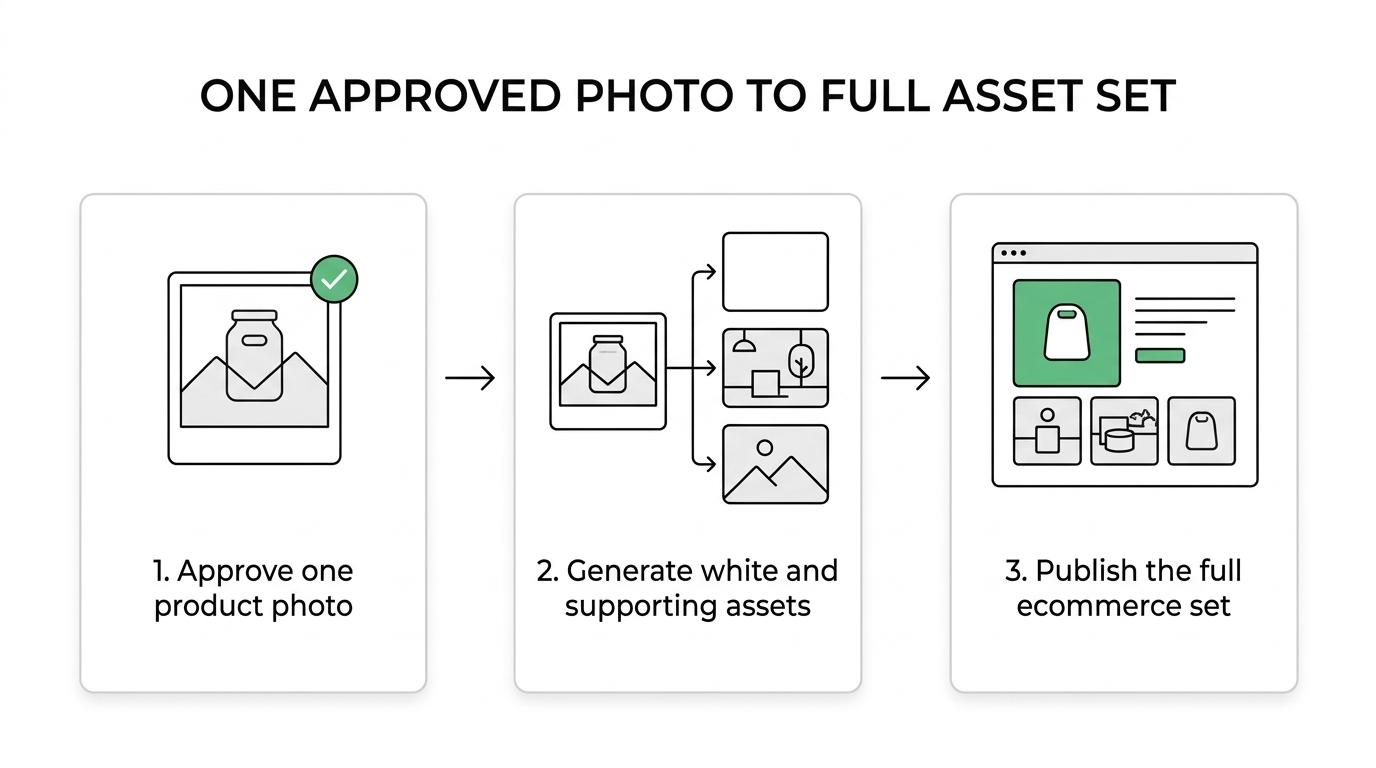
CREATR’s tools give you several ways to build that set:
- Product Photo Packs for coordinated listing and launch images.
- 9X Product Views for additional product compositions and angles that you review against the source.
- AI Product Photography for studio treatments and lifestyle scenes.
- Product Video Generator, AI Ads Generator, and AI UGC Creator for supporting campaign formats.
- 3D Product Models for a model you inspect before using it in a storefront. Read about 360 product viewing when planning an interactive experience.
- AI Content Writer for listing and ad-copy drafts based on real product details.
These assets serve different jobs. A lifestyle image can add context, while the controlled product view remains the reference for what the customer will receive.
Choose background removal or a new scene deliberately
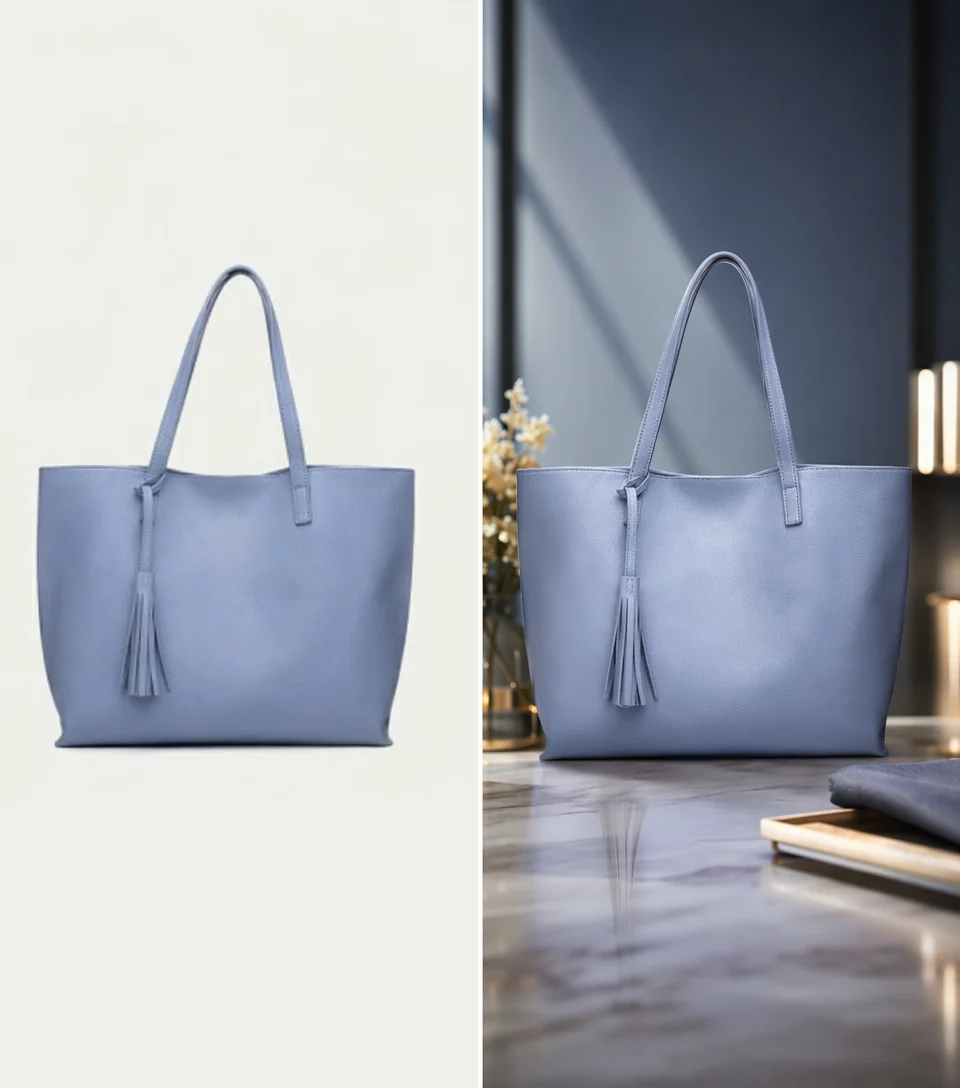
Background removal is a useful starting point when the item already looks right and only its surroundings need changing. Check the cutout around handles, openings, hair-like fibers, transparent packaging, and other difficult boundaries. Replacing a background should leave the product itself recognizable and complete.
A newly generated scene is a broader creative change. It may introduce different lighting, reflections, and relationships between the product and its surroundings. Use it for the supporting image job you planned, then compare it with the source. A believable scene still needs review when a seam moves, a label changes, or an accessory disappears.
Pair the clean main image with useful context
Baymard’s product-page research reports that only 49% of the ecommerce sites in its benchmark have decent or good overall product-page UX. The finding covers the whole page, so consider image coverage alongside the layout and information shoppers need.
Its research on product image types also explains how an isolated image, an on-model view, and an in-use scene communicate different information. Choose the image type that answers the buyer’s question.

For fashion and accessories, consider Virtual Model Photography when a worn view explains fit or scale. For beauty and jewelry, inspect small text, surfaces, and reflections closely. Food and furniture may need wider contextual views alongside the main image.
Build a repeatable catalog workflow
For a larger catalog, start with a small group of representative products. Record the background, crop, lighting direction, file naming, and approval checks that work. Apply the same brief to the next group, then review every result by SKU.
Use Photo Packs to organize coordinated sets and explore batch-generation workflows for recurring catalog work. Confirm the controls, limits, output sizes, and credit costs available in the current product before planning a large run.
A shared preset does not replace individual review. Check product variants, labels, item counts, and edges before uploading to a store. Keep approved originals and exports together so the team can find the correct version later.
Plan a small pilot before a full catalog run
For example, imagine a store preparing a ceramic mug, a clear bottle, and a fabric bag. Use the mug to check pale edges and shape, the bottle to check transparency and reflections, and the bag to check texture and openings. This is a planning example, not a measured CREATR test. The point is to include the kinds of detail your catalog actually contains.
Approve the main view for each product before making supporting scenes. Record why a result was accepted or rejected. If the bottle repeatedly loses its transparent edge, resolve that source or editing issue before processing similar items. Keep the approved brief with the exported files so later launches can use the same decision rules.
Prepare crops and exports for the storefront
Keep an approved master image and make separate exports for different placements. A collection grid, product gallery, email banner, and vertical advertisement may need different framing. Start each crop from the master so the product does not become progressively smaller or lose important edges through repeated revisions.
Shopify’s media-editor guidance explains that images need the same aspect ratio when you want them to display at the same size in a collection. Preview the actual theme as well: its display settings can affect what a shopper sees. Check a phone layout, the gallery’s first image, thumbnails, and the larger product view.
Choose the export by its destination rather than a universal file-size target. Keep text and fine details readable, then remove unnecessary weight where possible. Avoid repeated lossy exports during editing. Store the final dimensions and version with the SKU so the team can distinguish a catalog master from a campaign crop.
Troubleshoot common white-background problems
The background looks gray
Check the exported file rather than judging only the editor’s canvas. The photograph may contain a gray sweep, a color cast, or shadows that make the surrounding area look uneven. Inspect the background and product separately. Correcting the background should not erase pale product edges or change the item’s real color.
The cutout has a halo or missing parts
Zoom in around the outline and compare it with the original. Look for clipped handles, gaps filled incorrectly, rough fabric edges, or a leftover border from the previous background. If the source gives the tool little separation to work with, try a clearer source or a more controlled edit before approving the result.
The product appears to float
Inspect where the product should meet the surface. The contact area, shadow direction, and perspective need to agree. A missing or misplaced shadow can make an otherwise sharp image feel disconnected. Match the treatment to the image’s destination, since a marketplace main image and a styled product scene can have different requirements.
White-background photography FAQ
Does every product image need a white background?
No. Choose the background for the placement and the information the image needs to communicate. A controlled main view, a detail image, and an in-use scene serve different purposes. Follow the current rules for each marketplace and use supporting images to explain context where appropriate.
Can I start with a phone photo?
Yes, if it gives you a sharp, accurate view with enough detail for the intended output. Stabilize the camera, use suitable light, and inspect the original at a larger size. A clean source matters more than assuming any device will produce a usable result automatically.
Is a transparent background the same as white?
No. Transparency lets the background beneath an image show through. A white-background image contains a white surrounding area. Check the actual exported file and how the store displays it before deciding whether it meets the intended placement’s requirements.
When should I photograph the item again?
Reshoot when the source is blurred, hides important parts, shows the wrong variant, or does not represent the real product accurately. Editing a background cannot establish facts that the source never shows. A better reference can also make later creative review easier.
Check every image before publishing
- The product’s shape, color, material, and included parts match the source.
- Logos, packaging, and printed text remain readable and accurate.
- Edges, reflections, transparency, and contact shadows look credible.
- The background, crop, dimensions, and file format meet the destination’s requirements.
- Supporting images explain the product without implying features or uses it does not have.
Generation time and available resolution depend on the selected tool and settings. Review current plans and credits for available tools, limits, and export options.
Start with one approved product photo
A physical shoot gives you the product reference. CREATR can help prepare an alternative background and build the supporting set from that reference. Choose the next asset by its job on the listing, and approve it against the real item before publishing.