Mastering AI Image Generation: Commercial Visuals Without Complex Prompts
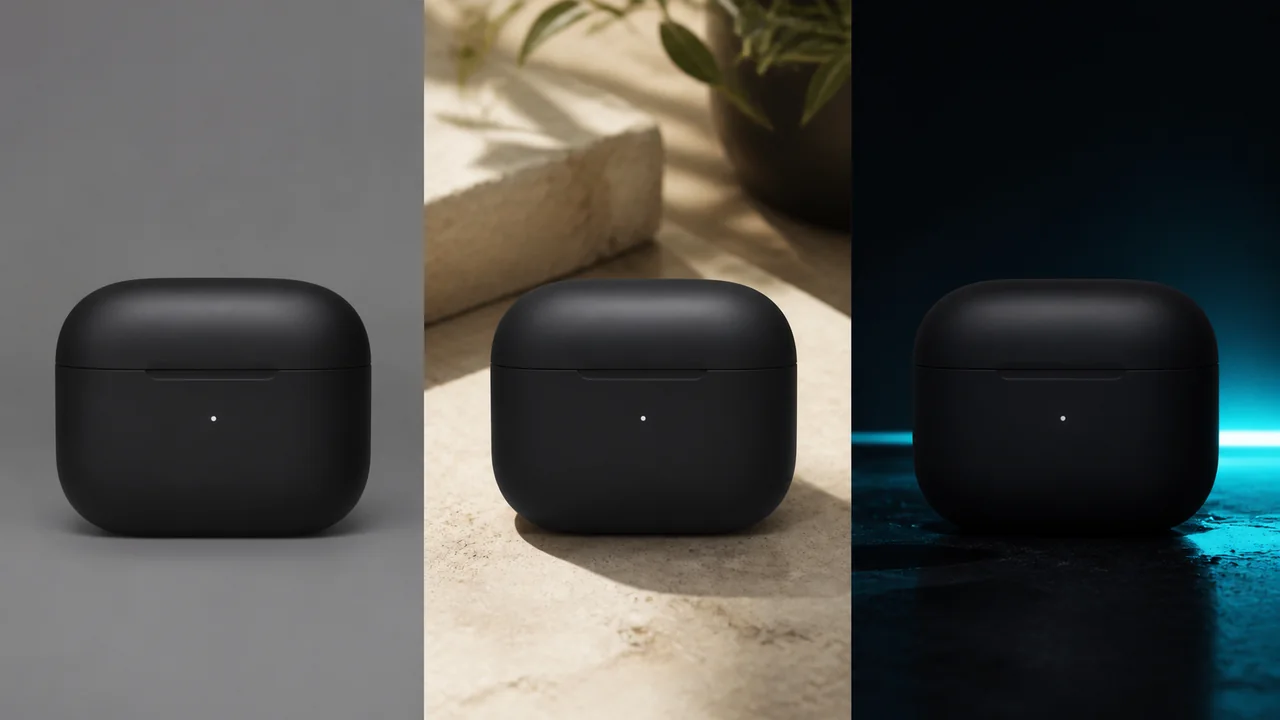
An editorial workflow guide, not a benchmark of image generators. The prompt examples below are illustrative. The product images are existing CREATR showcases, not outputs verified against these prompts.
For commercial AI image generation, start with an accurate product image and a brief that names the subject, setting, lighting, and camera view. Decide where the result will appear, then review it against the source. This gives a team a repeatable process without assuming that a particular prompt length can guarantee a usable image.
A useful brief is specific enough to judge. “Warm side lighting on a pale stone counter, with the label facing the camera” gives a reviewer clear checks. A list of praise words gives less direction. Add detail when it explains the desired picture; remove it when it repeats the same instruction or conflicts with another one.
Key takeaways
- Choose the image’s job before generating: show a detail, explain use, or support a campaign.
- Write a four-part brief: subject, setting, lighting, and camera view.
- A source image, mask, or structural guide can help, but each workflow has different limits.
- Compare labels, shape, color, scale, and shadows with the approved product record.
- Check the destination’s current image rules and preview the final crop.
Prepare the source and the placement
Gather the correct product variant, an approved source image, and a clear output request. Use a sharp photo that shows the parts needed in the final view. Keep the original file available during review. A source that hides a zipper or label cannot establish what that detail should look like in a new scene.
- Confirm the item. Record the SKU, color, included parts, and any details that must remain visible.
- Choose one placement. A listing image, mobile ad, and wide banner need different compositions.
- Set acceptance checks. Name the label, hardware, material, or scale reference the reviewer must inspect.
- Keep permission and export details. Use source assets you can edit and publish, and record the required file format and crop.
Test one representative product before preparing a batch. Include a difficult example if the catalog contains reflective surfaces, fine text, transparent packaging, or closely related variants. Record failed attempts as well as accepted files so you can judge the time and cost of the whole process.
Choose a workflow for the image’s job
Compare the controls a task needs rather than treating all image generators as interchangeable. The table below describes workflow types; it is not a ranked tool test. Features, model versions, licenses, and limits vary by service.
| Workflow | Useful for | Check before choosing it |
|---|---|---|
| Text-to-image | Concepts, mood exploration, and scenes without an exact product requirement | It creates a new subject; do not assume it represents an existing SKU. |
| Image-conditioned generation | Exploring a new setting or treatment from a reference | The model can still change labels, shape, color, or parts. |
| Masked editing or compositing | Changing a selected area or building a scene around an approved product | Confirm which pixels the specific tool retains, how its mask works, and whether edges remain clean. |
| Controlled photography | Proving construction, packaging copy, fit, and other physical details | Capture the actual item under lighting that makes the relevant detail visible. |
For a CREATR scene workflow, start with the AI Product Photo Generator or Background Builder. Compare each result with the source before using it in a listing. A tool’s intended purpose does not remove the need to inspect the output.
Write a four-part production brief
Build the brief in the same order each time. Keep fixed product requirements separate from scene choices. This makes revisions easier to track: change the lighting when the reflection is wrong, rather than rewriting the product description and setting at the same time.
1. Subject: identify the real item
Name the product, material, finish, and important visible features. “Matte full-grain tan leather with brass hardware” gives more useful direction than a string of luxury adjectives. Do not ask a model to invent a hidden feature and then treat the result as a product record.
Keep the constraints factual: the correct cap, handle, buttons, seam pattern, or label. If exact lettering matters, plan to retain the approved lettering through the editing workflow, rather than relying on a description of it.
2. Setting: explain where it belongs
Name the supporting surface, nearby props, and background. Give props a job. A mug beside a breakfast setting can suggest use; unrelated objects may simply compete for space. State which parts of the frame need to remain clear for the product or campaign copy.
Check scale and support. A bottle should sit naturally on its counter. A chair needs a plausible relationship to the room. Describe the context, then verify it in the result.
3. Lighting: choose direction and softness
Describe a main light source and the shadow character you want: soft window light from the left, an overhead softbox, or a harder side light. Use color-temperature terms when they help communicate the intended warmth or coolness.
These are visual instructions, not a guarantee of physically accurate rendering. Check whether highlights, contact shadows, and reflections agree with the scene. A label that is technically present but hidden by glare is still a failed listing image.
4. Camera: define the view and crop
Specify eye level, overhead, a three-quarter view, or another clear viewpoint. Say whether the whole product must stay sharp or the background can soften. Lens and aperture terms can be useful shorthand, but they do not turn a generated image into a measured camera capture.
For a banner, place the product to one side and reserve space for text. For a product detail, move closer to the feature shoppers need to inspect. Check the actual crop at mobile size before approving the composition.
Use detail that helps a reviewer make a decision
Shorter is not always better. A long brief can be useful when it contains distinct requirements; a short brief can be too vague. The practical question is whether each instruction describes something you need to see. Remove conflicting styles and repeated praise words before adding more detail.
The following supplied example contrasts a list of aesthetic terms with a more specific scene description. It is a writing example, not evidence of a measured quality difference between the two prompts.
AVOID (Kitchen-Sink Prompting):
"Ultra-realistic 8k masterpiece product photography of a modern watch on a rock,
cinematic lighting, trending on artstation, octane render, photorealistic award winning,
dramatic ambiance, hyper-detailed textures, unreal engine 5, incredible details."

USE (Structured Production Brief):
"Commercial studio photography of a minimalist chronograph watch resting flat on a dark
slate pedestal. Key light from the top left creates crisp reflections across the polished steel bezel.
Neutral dark charcoal background, subtle depth of field, sharp focus on the dial markers."
Prompt examples for four commercial formats
Use these as starting points for a brief. They have not been benchmarked across generators, and the camera terms describe a desired appearance. When the picture must show an actual item, supply the approved source through the tool’s supported image workflow and review the product separately.
Studio product view
Use an uncluttered composition when the image needs to communicate the item clearly. Keep the whole product visible, check its edges, and verify the destination’s background rules.
Commercial studio product photography of a matte black stainless steel thermal water bottle.
Centered composition, straight eye-level angle. Placed on a pristine white acrylic surface with a
subtle, faint contact reflection beneath the base. Balanced dual softbox lighting from the left and
right, eliminating harsh glares. Neutral white background, shot on an 85mm lens at f/11 for front-to-back
sharpness, edge-to-edge clarity.
Review the cap, base, label area, surface color, and contact shadow. The aperture language in the example does not prove that every part of the generated bottle will be sharp.
Lifestyle scene
A supporting scene can show where a product might be used. Keep the item recognizable and avoid props that imply unverified ingredients, accessories, or included pieces.
Editorial lifestyle photography of a botanical facial serum in an amber glass dropper bottle.
The bottle sits on a damp travertine stone vanity shelf in the foreground. Soft morning light enters
from an off-camera window, casting organic palm leaf shadows against a warm beige plaster wall in
the background. Shallow depth of field, shot on a 50mm lens at f/2.8, crisp focus on the amber bottle
and glass pipette, natural atmosphere.
Check the bottle’s proportions and label against the real product. If this will become a banner, adapt the composition for the required text space and preview the actual layout.
Material detail
Use a real close-up when the image must prove a specific texture, finish, or construction detail. A generated macro view can illustrate a concept, but it may invent grooves, stitching, or surface marks.
Macro product photography capturing the knurled crown and bezel of a mechanical sports watch.
Extreme close-up angle, focusing on the brushed titanium grain and polished chamfered edge.
A focused fiber-optic grazing light sweeps across the metallic surface from the side, highlighting the
tactile grooves. Dark matte background, shot on a 105mm macro lens at f/5.6, microscopic clarity on
metal textures, minimal atmospheric haze.
Do not use a convincing invented texture as evidence of the item’s manufacture. Compare a proposed detail image with a physical reference or an approved close-up.
Model-led composition
For apparel, include a clear garment reference and a defined view. Inspect the neckline, closures, fabric, length, and silhouette. A plausible model pose does not establish how a garment will fit a customer.
Full-length fashion portrait photography of a female model wearing an oversized cream merino wool knit
sweater and tailored charcoal trousers. The model stands in a relaxed, natural three-quarter pose within
a sunlit concrete architectural courtyard. Soft diffused daylight under an overcast sky provides even,
gentle illumination across the knit fabric textures. Shot at eye-level on an 85mm lens at f/4, clean lines,
editorial mood.
Check hands, body proportions, garment overlap, and any accessories as well as the clothing. CREATR’s Virtual Model Photography is another workflow to consider when the brief needs a model-led presentation.
Protect product details during editing
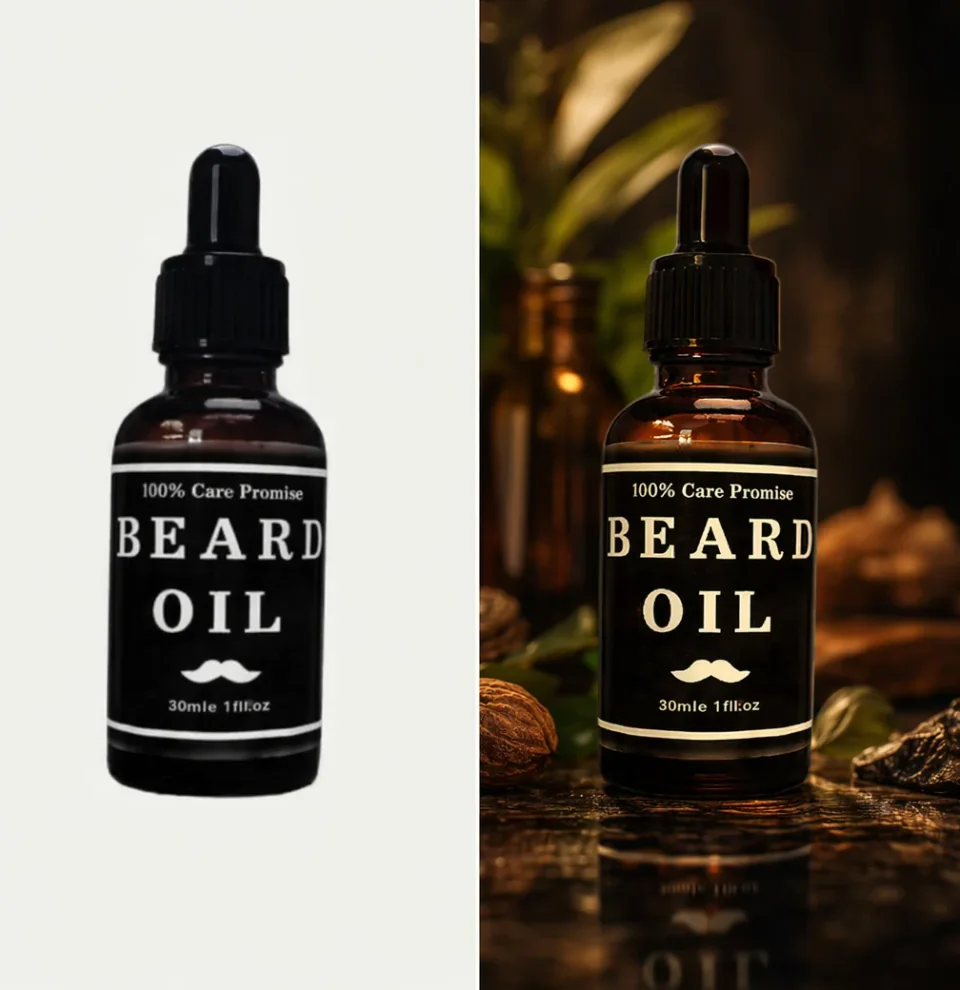
Image-to-image generation uses a source as input; that does not mean it preserves every source pixel. A compositing workflow can retain the approved product layer while changing its surroundings. A mask can limit the area an editor changes, but mask interpretation and edge treatment depend on the tool. Confirm the behavior of the workflow you use.
Keep the original beside the result
Compare the same variant at a similar size. Look at the shape, label, cap, handles, fasteners, and included parts. Check that a color change is intentional and that the scene has not hidden a feature shoppers need to see. If a critical detail is wrong, reject the file before adding campaign text or spending time on export.
Know what structural controls can and cannot establish
The ControlNet research paper describes spatial conditioning such as edges and depth. These controls can guide a scene’s structure; they do not certify exact labels, geometry, or color. Similarly, an upscaler may make an image larger without recovering factual detail that was missing or wrong.
Use a physical photo for views that must establish exact packaging copy, assembly, fit, or construction. If repeated attempts fail on the same feature, improve the source, change the editing method, or photograph that view again.
Match each export to its destination
There is no universal size, white-background rule, or safe margin for all ecommerce and advertising placements. Check the current requirements for the platform, product category, and image role. The guidance below separates those decisions.
Amazon product images
Check Amazon’s product image guide for the applicable main-image and category requirements. The main view and supporting gallery have different jobs. Keep a verified product view available; do not assume a styled scene is acceptable as the primary image simply because it exports successfully.
Walmart Marketplace images
Walmart’s image guidelines list a square 2200 × 2200-pixel image, with 1500 × 1500 pixels as the minimum for zoom, and a seamless white background. Read the complete guide for file limits, category exceptions, and additional-image rules. It also says AI-generated content must remain accurate and truthful.
Shopify storefront images
Shopify’s product-media guidance recommends 2048 × 2048 pixels for square product images and explains that display depends on the theme. This is not a universal white-background requirement. Use consistent proportions for collection thumbnails and inspect both the collection and product page on a phone.
Social ads and wide banners
Choose the exact placement in the publishing tool before exporting. Vertical, square, and wide layouts need different crops. Leave room for the real overlay text and interface controls, then preview the uploaded asset. A fixed percentage margin is only a planning aid; it cannot substitute for checking the destination.
Review the image before publishing
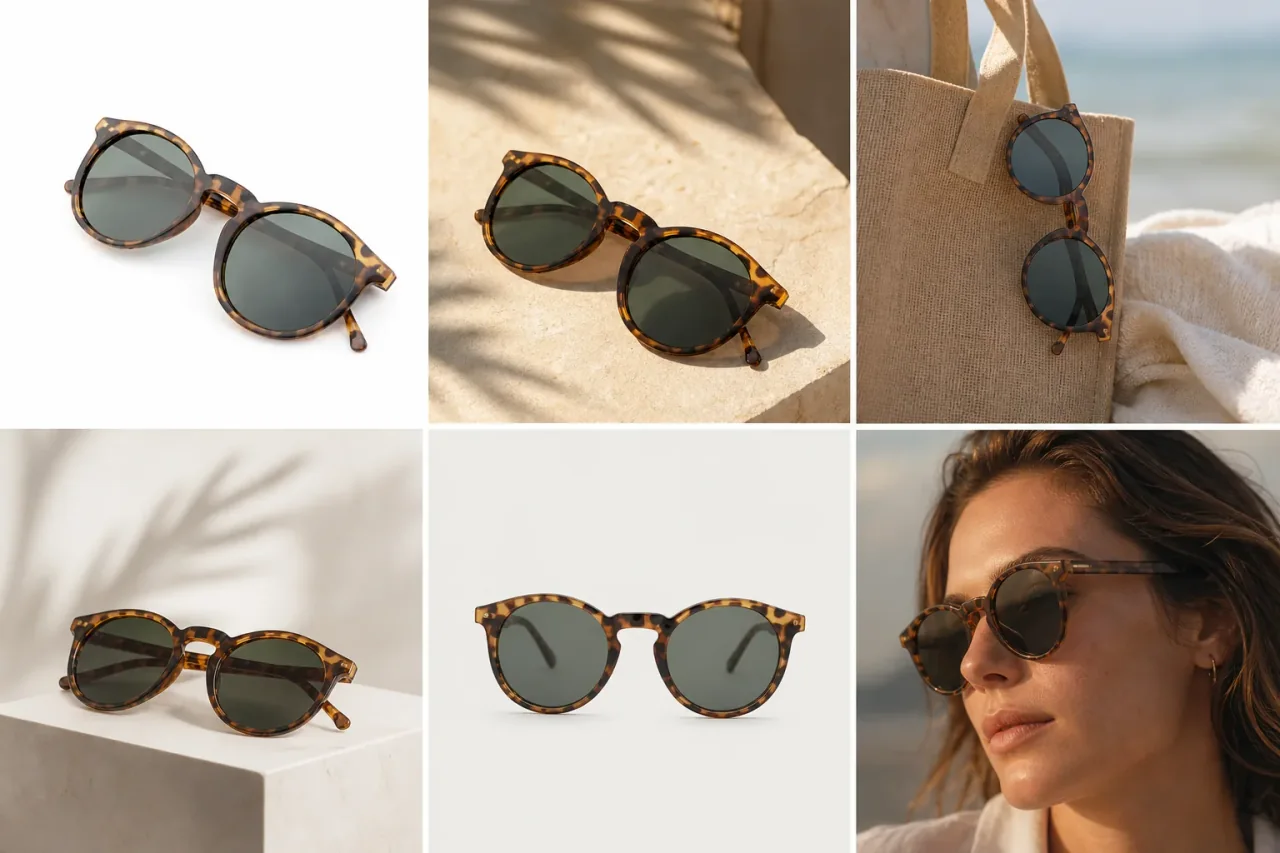
Review product accuracy first, scene coherence second, and the final placement last. A visually attractive background cannot repair a wrong variant or an invented product feature. Open the full-resolution file as well as the thumbnail used in the actual layout.
- Labels and text. Compare spelling, symbols, markings, and packaging copy with the source. Reject altered or unreadable critical text.
- Shape and parts. Count buttons, seams, eyelets, handles, and other relevant features. Check the silhouette and symmetry against the real item.
- Color and material. Look for unintended finish changes, invented texture, or reflections that obscure the product.
- Support, light, and scale. Check contact shadows, reflection direction, surface contact, and the size of nearby props. Review hands and anatomy when people are present.
- Edges and crop. Inspect halos, soft cutout edges, and overlaps. Then preview the export with the destination’s text and controls in place.
Log defects so the next attempt has a purpose
Record the source file, product variant, brief, tool and model version when available, and the reason for rejection. A useful note names the defect: label text changed, handle merged with the background, or zipper hidden by the crop. “Looks wrong” gives the next reviewer little to act on.
Change one part of the brief or workflow at a time when diagnosing a repeat failure. Keep the accepted file and its approval record together. If the product itself changes, revisit the assets that represent it rather than assuming the previous image still applies.
Research context and further reading
Different model families use different architectures and editing controls. Text can guide a result, but a product brief is not a physics simulation or an accuracy certificate. The FLUX.1 [dev] model card, for example, describes a rectified-flow transformer and explicitly notes that outputs may fail to follow a prompt. Read the named version’s limitations and license before choosing a workflow.
The historical Everypixel image-count analysis estimated more than 15 billion generated images by August 2023. That estimate describes output volume, not how many images were commercially approved. It should not be used to infer a success rate or current market size.
For additional technical reading, see the DALL-E 3 research paper and the ControlNet paper. For a particular editing service, consult its current interface documentation: the article’s original Stability AI documentation citation is a legacy reference; the current API reference is the place to check available controls.
Frequently asked questions
What should a commercial AI image brief include?
Describe the subject, setting, lighting, and camera view. Add the destination crop and the product details that must stay accurate. Use these as review criteria; a clear brief cannot guarantee an accurate output.
Can a prompt preserve an exact product logo?
A prompt alone cannot guarantee exact logo or label reproduction. If the text must remain unchanged, use a workflow that retains approved product pixels or composite them into the scene. Inspect the exported file against the source before publishing.
Are generated product images suitable for every listing?
No. Choose the method for the image’s purpose and the destination’s rules. Use verified product photography when the image must demonstrate a construction detail, fit, or exact packaging copy. Review generated supporting scenes individually.
How do text-to-image and image-to-image workflows differ?
Text-to-image creates a new scene from a written description. Image-to-image also uses an existing image as input, but can still change its content. Supplying a reference does not by itself preserve every product detail.
Do lens and aperture terms work like real camera settings?
They are visual directions in a prompt, not physical camera controls. Terms such as 85mm and f/8 can describe perspective and sharpness, but results depend on the model. Check the actual image instead of treating those terms as verified capture settings.
Does ControlNet prevent all product distortion?
No. ControlNet adds spatial conditioning, such as edges or depth, to guide generation. It can help with composition and structure, but does not guarantee exact labels, colors, silhouettes, or proportions.